hotel lobby trend
Hotel Lobby Trend: Make a Two-Photo Performance Video
Start with two photos, understand the template, and review the result before sharing.
The Hotel Lobby trend recasts a two-person performance with your photos. On this site, choose one photo for each performer and use a preset motion template. Generation requires an account and credits; it does not grant rights to the original Migos recording or promise an identical music video.
Reviewed against the live product on 2026-10-07. The generator offers 480p or 720p, one photo per performer, and a template-set length.
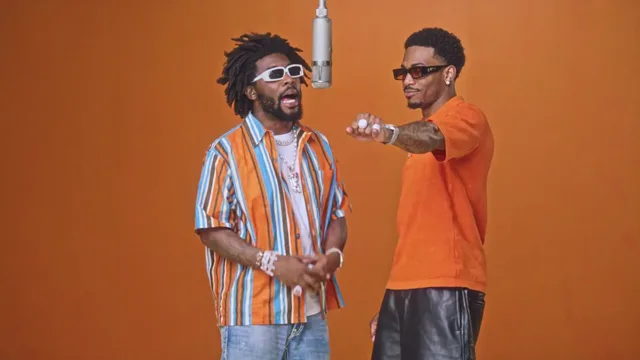
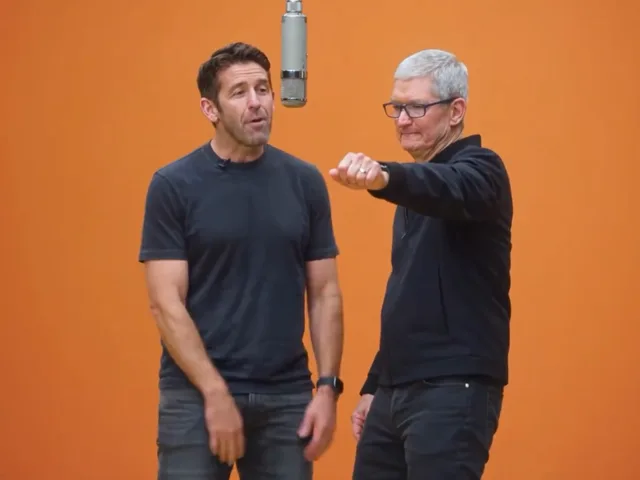
If you searched for the Hotel Lobby trend after seeing two familiar faces performing in an orange studio, the useful question is simple: how do I make a version with my own photos? This guide takes you from that question to the actual tool. You can choose photos and generate on this page instead of collecting prompts and then hunting for another website.
The name is associated with Quavo and Takeoff's Hotel Lobby performance for A COLORS SHOW and the AI remixes it inspired. That reference explains the visual language of the trend. It does not make this independent website an official Migos, COLORS or Higgsfield service. A finished AI clip, the underlying motion template, and the music you add are separate things. Keeping those distinctions clear helps you decide whether the result fits a personal message, a social post or a commercial project.
Make your video here
Choose one photo per performer, preview them and swap positions. Generation requires sign-in and uses your account credits. Use photos you have permission to upload.
Choose your performers
Clear front-facing photos work best — one person per image, no covered faces.
Two people performing a short studio duet, recast with your two photos.
Each generation uses credits from your balance.
Sign in to generate videos.
Signing in keeps selected photos in this browser for your return. The draft expires after 20 minutes and is removed on return or the next visit after expiry.
Template preview — your two photos replace these performers.
Preview and change the motion template
Classic Duo
Two people performing a short studio duet, recast with your two photos.
High Energy Duo
A faster, more upbeat two-person studio performance.
Soft Groove Duo
A slower, relaxed two-person studio groove.
Still to Motion
A still portrait brought into gentle motion.
Minimal Motion
Subtle movement with a minimal set and camera.
Kangaroo Boxer
A single boxing-kangaroo motion source from your provided material.
Duo Conversation
Two performers facing each other in a dialogue scene.
Cinematic Duo
A wider, more cinematic two-person framing.
Tools used in this guide
Choose the result you actually want
There are several different requests hidden inside the phrase Migos AI video. One person wants a short duo performance featuring friends. Another wants an exact recreation of a particular recording. Someone else wants any two-photo dance video with an orange background. Start by deciding which part matters: the people, the movement, the setting or a particular sound. A motion-transfer template is a good fit when you want the movement and framing to come from an existing preset while the people come from your photos.
This generator takes that template-based approach. It is not a general video editor with a timeline, a custom choreography tool or a music licensing service. If you need a precise new camera movement, a different scene duration or guaranteed lip sync to a chosen song, check that requirement separately. A clear requirement saves more time than repeatedly changing photos to solve a setting the product does not expose.
Prepare one usable portrait for each performer
Use a separate image for the left performer and the right performer. Choose pictures with one clearly visible person, reasonably even lighting and recognizable facial detail. A group photograph asks the model to infer which face matters; a heavily filtered portrait gives it invented detail to carry into motion. Avoid sunglasses, hands over the mouth, extreme side profiles and crops that cut through the face. These are practical input checks, not a guarantee that every frame will preserve identity.
The uploader accepts JPG, PNG and WebP images up to 10 MB each. Selecting a file lets you inspect a local preview before requesting generation. Use the swap control if you have assigned the people to the wrong positions. You do not need to merge the portraits into one collage. Uploading the same collage into both slots is likely to make the intended identity assignment less clear, because each reference now contains two competing people.
Use the embedded generator and a real template preview
The tool above is the same generation interface used on the homepage. Start with Classic Duo if the two-person studio composition is what brought you here. Open the template section to inspect other motions before choosing one. A template preview shows the source motion, not a generated result made from your photos. It helps you judge whether the framing, overlap and pace match your idea without pretending to predict exactly what the model will produce.
Choose 480p or 720p, the public resolutions currently offered by the interface. The selected source template determines duration; there is no separate duration control. You do not need to write a prompt to get started. Sign in when you are ready to generate and check your account balance. The generation uses credits. Avoid submitting the same request repeatedly while it is processing, since another deliberate submission is another job, not a way to make the original one finish faster.
Understand what free means before spending time
A search for hotel lobby trend free can mean a free tutorial, a free template preview or free rendering. Those are different offers. Reading this guide, checking a template preview and preparing your photos do not themselves create a generated video. Rendering requires a signed-in account with sufficient credits. Use the current pricing page and your displayed balance to understand what is available to your account; this article does not promise unlimited rendering or a new-user allowance.
If you are comparing this site with Higgsfield or another service, compare the complete task rather than the word free on a headline. Check whether two separate people are supported, what output you can actually download, and whether a preview consumes credits. Also compare what happens after an explicit failure. A request that has not finished is not automatically a failed request, so a slow status alone should not be interpreted as a refund confirmation.
Review the whole clip, not only its first frame
Once a result is ready, watch it from beginning to end before downloading or posting. Check the left and right identities at the start, around the most energetic movement and at the end. Look for faces merging when the performers overlap, hands crossing a face, unexpected extra people and abrupt changes in clothing or body shape. These observations are more useful than a broad judgment such as the video looks wrong because each one suggests a different next action.
If one identity is weak throughout, try a clearer portrait of that person while leaving the other input unchanged. If both identities look good until a fast movement, a calmer template may be a better experiment than replacing both photos. Keep one variable fixed so you can learn from a retry. A higher output resolution increases the pixel dimensions of a result; it does not by itself fix a mistaken identity or guarantee better motion.
Separate the visual remix from the soundtrack
The original performance is a useful reference for understanding the trend. It is not a bundle of rights that automatically comes with an AI output. Do not assume the generated MP4 contains the original song, that its sound matches a specific social clip, or that an upload has cleared music rights for advertising. Listen to the actual file and check the publishing platform's options for your intended account and use. This tool does not offer a song selector or a music clearance service.
For a personal remix, use your own authorized photos and make the AI nature of the result clear where relevant. For a brand or client project, agree on the intended people, soundtrack and publication context before spending on multiple variations. Getting consent and reviewing the output are part of preparing a usable creative asset. They also prevent an avoidable mismatch between the entertaining preview someone requested and the final asset they are allowed to publish.
Pick one useful next step
If you have two good portraits, the next step is to prepare them in the embedded generator and inspect Classic Duo. If your first result has identity problems, use the photo repair guide linked below and change one input at a time. If your question is about credits or a stalled task, use the account and support paths rather than paying for repeated attempts without understanding the status.
Hotel Lobby AI Video is useful for a focused reason: it puts a two-photo performance workflow in one place with template selection, job status, preview and MP4 download. That is a concrete workflow you can inspect. It is not a promise of instant delivery, perfect likeness or viral reach. Judge it by whether a reviewed output solves your own creative task, and stop when you have a clip you would actually share.
Frequently asked questions
Is this the official Migos or Higgsfield website?
No. Hotel Lobby AI Video is an independent tool. The trend name is a reference to the visual idea; it does not imply an endorsement by the artists, COLORS or Higgsfield.
Can I make a Hotel Lobby trend video for free?
The guide and template previews are public. Actual generation requires sign-in and account credits. Check your account and the current pricing page rather than assuming a free or unlimited allowance.
Will my download include the original Hotel Lobby song?
This guide does not promise that soundtrack. Review the actual MP4 and arrange any additional music through a source appropriate for your intended use.
Do I need a long prompt?
No. The template supplies the motion and framing. Start with clear reference photos, assigned to the correct positions.
Sources and product details
Pick the moment
Each use case opens the same real generator with a template chosen for that occasion.
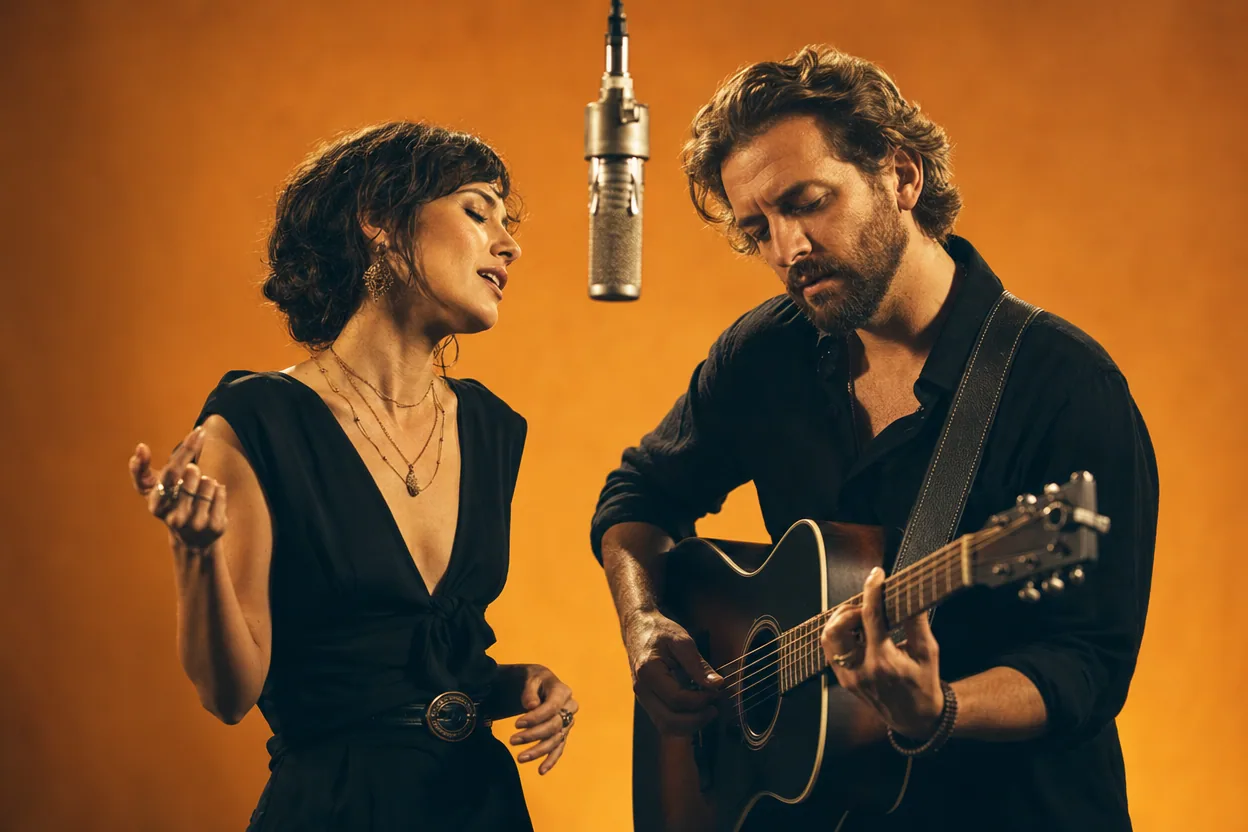
Trend explainers
Hotel Lobby Trend Video
The Hotel Lobby trend is a short AI video format where two people are placed into a shared performance scene. This page explains what the trend is, how to make a version from two photos, and what the result does not include.
Open this use case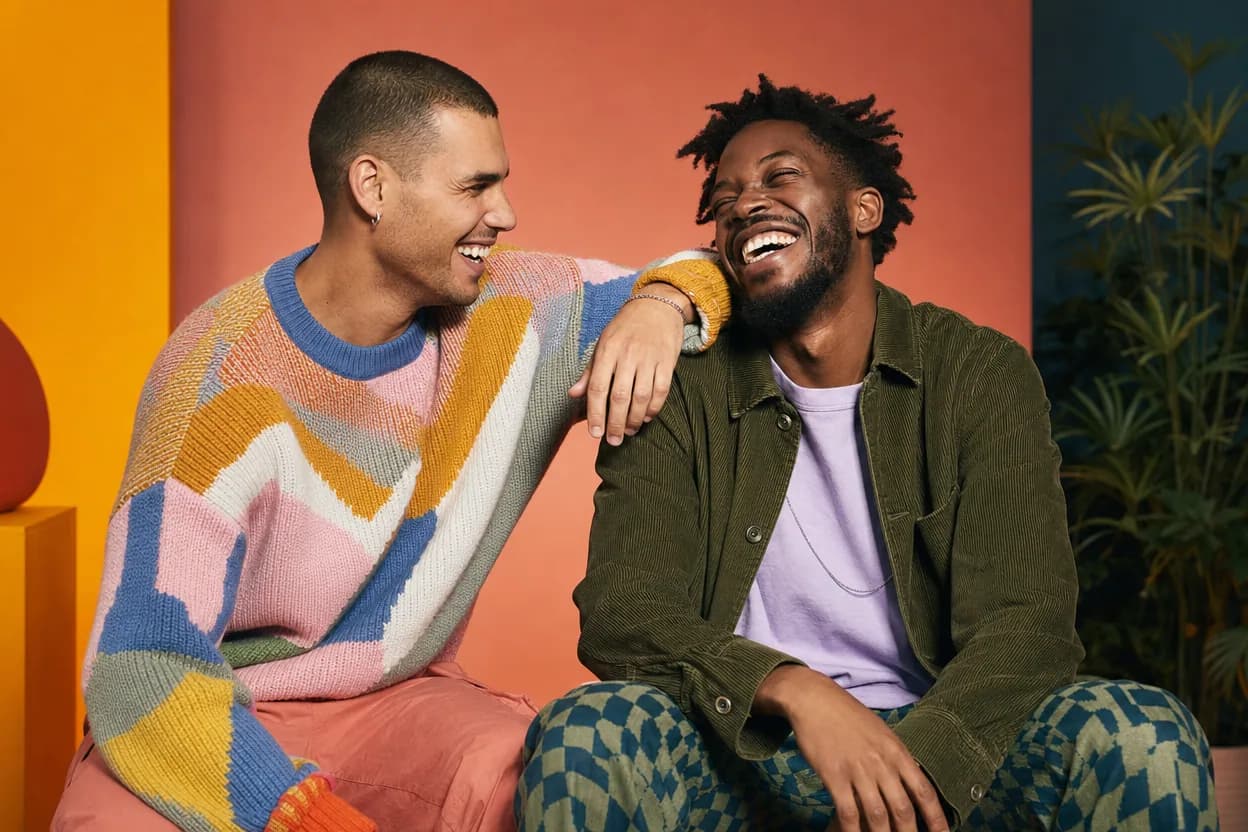
Friendship
Best Friends Duo Video
A best friends duo video puts two friends into the same short performance without needing a shared shoot. It is a playful format for a birthday, a moving-away message, a reunion, or a social post.
Open this use case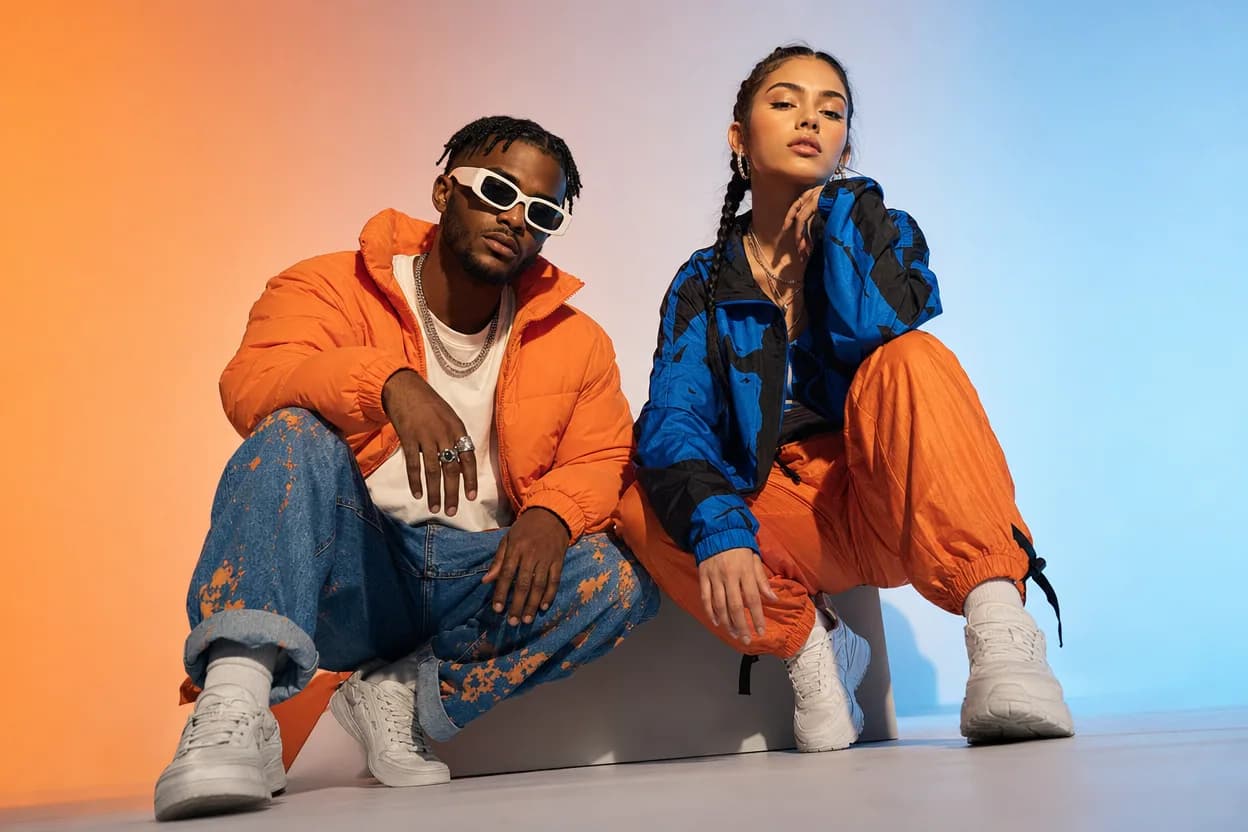
Social clips
Social Media Duo Video
A social media duo video is a short, shareable clip built from two portraits. It gives a post a moving visual without a shoot, a script, or a shared filming session.
Open this use caseRelated reading
 ai duo video photo checklist
Fix an AI Duo Video: A Practical Photo and Result Checklist
A repeatable way to prepare portraits and diagnose a weak result without blindly regenerating the same clip.
 hotel lobby video template
Hotel Lobby Video Template: Picking the Right Preset Scene
Templates do the creative work in photo-to-video generation. Here is what each of the eight Hotel Lobby AI Video templates is built for.
 ai motion transfer video
AI Motion Transfer Video: How Movement Moves Between People
Motion transfer is the engine behind template-based video generation. Here is how a source scene's movement ends up in a clip built from your photos.