Put two photos side by side
Combine two photos into one clean image. Choose a side-by-side, stacked, or polaroid layout, adjust the space between them, and download a PNG. The preview updates as you work.
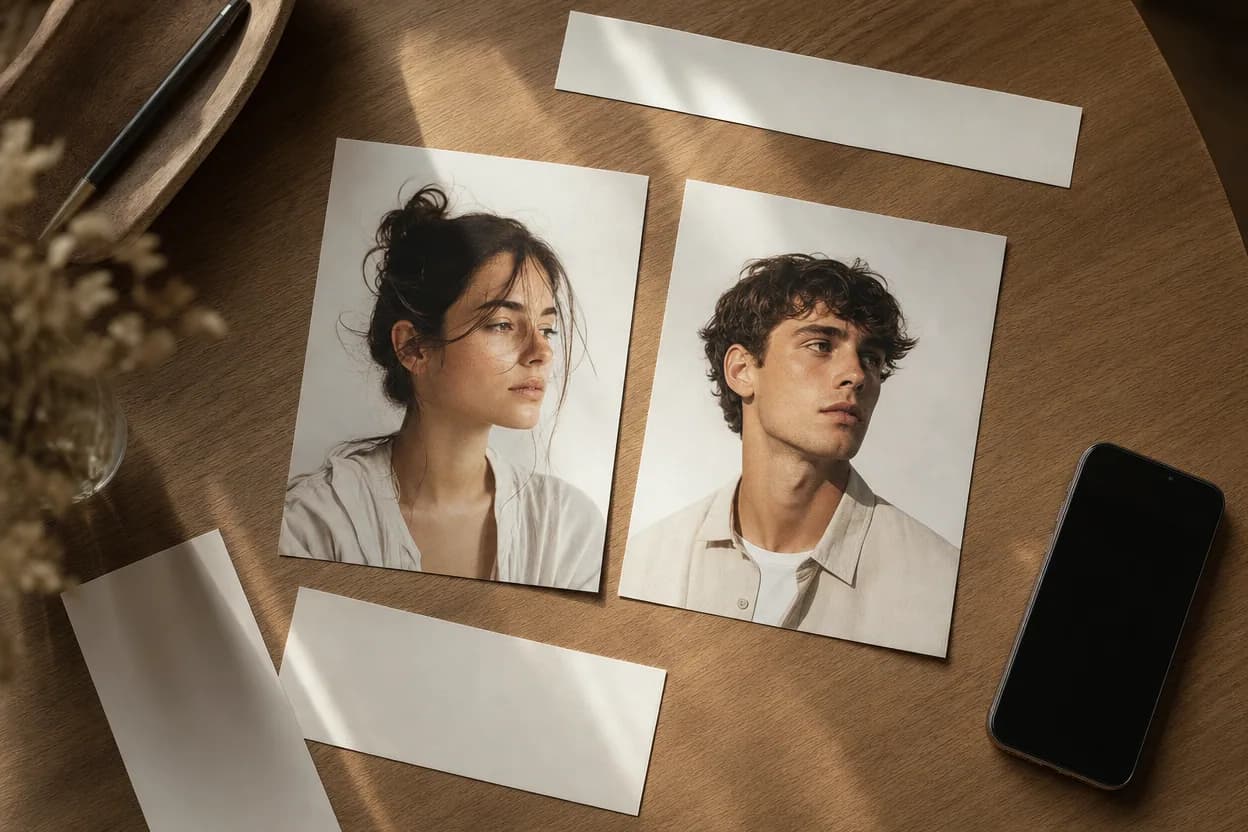
The collage stays in this browser. Nothing is uploaded until you choose to open the generator and generate a video.
2000 × 1400px export
How to use the collage tool
- 1. Add one clear photo to each slot. One person per photo is easiest to work with.
- 2. Choose side by side, stacked, or polaroid. The export size changes with the layout.
- 3. Use the gap slider to control the space. Choose a background token that matches your page.
- 4. Download the PNG, or continue to the video generator with both photos prepared.
Good inputs for a clean collage
- Use photos with a similar crop and light level.
- Keep faces away from the very edge of the frame.
- Use the largest source files you have.
- Ask before sharing a photo of someone else.
Frequently asked questions
How do I put two photos side by side?
Choose Photo A and Photo B, keep the Side by side layout, adjust the gap if needed, and click Download PNG. The exported image uses the dimensions shown below the preview.
Does the tool upload my photos?
No. The collage is drawn in your browser with the canvas API. A photo is only sent to the generator if you choose the button that continues to video generation.
Can I make a vertical collage?
Yes. Choose the Stacked layout to place one photo above the other. The export changes to a portrait-oriented canvas.
What image formats can I use?
JPG, PNG, and WebP are accepted. For the cleanest result, use the largest version of each photo you have.
Can I use the collage to make a video?
The video generator needs two separate photos, one per person. The tool has a button that prepares both photos and carries them to the generator in the same browser.