Prepare two portraits for a duo video
A clear, centered face gives the generator more to work with. Crop each portrait, lift a dark photo, and keep both people looking like themselves.
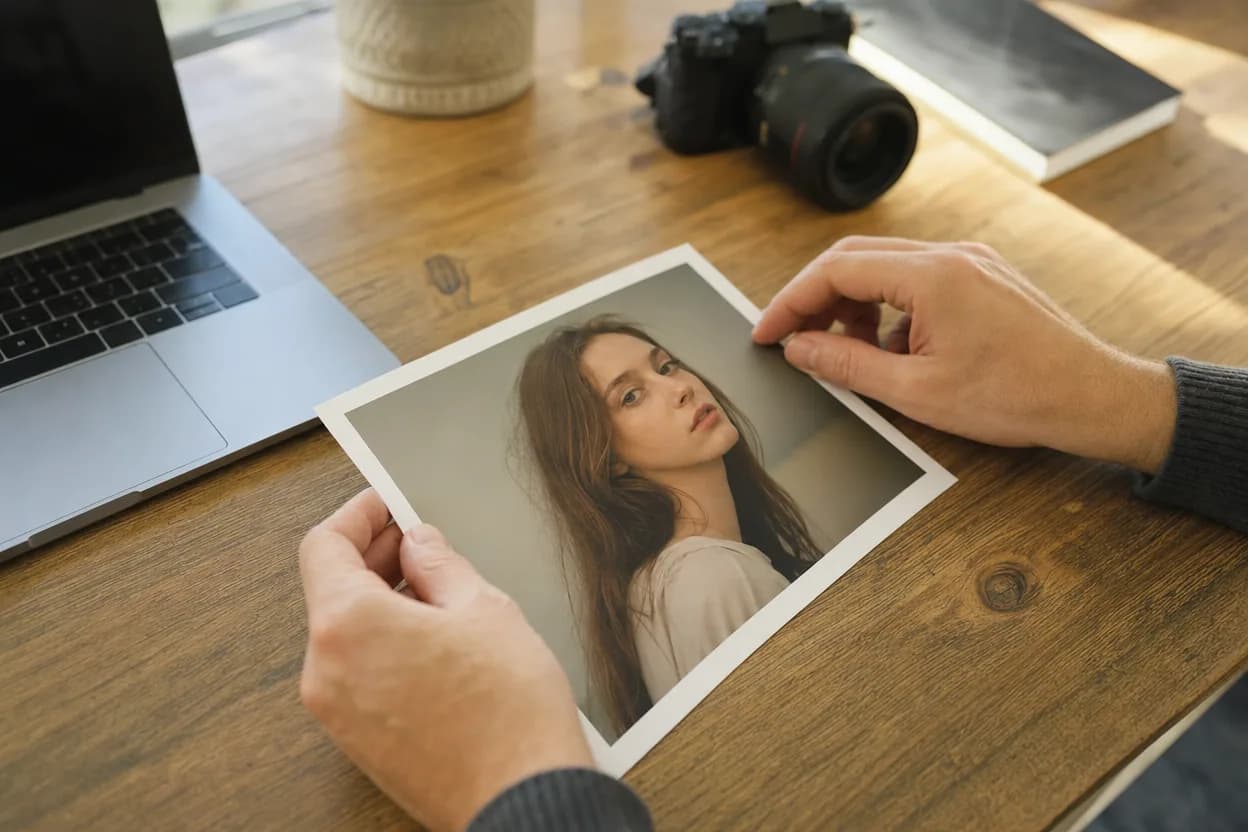
Photo A
One person, clear face
Photo B
One person, clear face
Adjustments run locally in this browser. The prepared photos are only passed to the generator when you choose to continue.
What to fix before generating
- Center the face with a little room above the head.
- Avoid cutting off the chin or the side of the face.
- Lift a dark photo before adding contrast.
- Keep skin tone natural; do not max out saturation.
What it does not do
This is a preparation tool, not a face generator. It does not change identity, add clothing, remove a background, or create a new person. Those changes belong to the video template, and the result can still vary.
Frequently asked questions
What does the photo prep studio do?
It crops each portrait into a square, lets you zoom and move the face, and adjusts brightness and contrast. You can download each prepared image or send both to the generator.
Are my photos uploaded?
The editing runs locally in your browser. Photos are only passed to the generator when you choose the button that continues to video generation.
Why crop to a square?
A square preview makes it easier to keep the face centered. The generator uses the prepared image as an input and places it into the selected template.
Can I adjust the two photos separately?
Yes. Each side has its own crop, zoom, position, brightness, and contrast controls.
Does this change the person's face?
No. The tool only crops, moves, and adjusts light and contrast. It does not generate a new face.