ai duo video photo checklist
Fix an AI Duo Video: A Practical Photo and Result Checklist
Change one input, check one failure, and know when another render will not help.
Start with one clear person per photo and verify the left/right assignment. If identity is weak from the first frame, replace that portrait. If problems appear only during movement, try a calmer template. Resolution alone will not fix identity mixing. This checklist is guidance, not an automatic quality score.
Reviewed against the live product on 2026-10-07. The generator offers 480p or 720p, one photo per performer, and a template-set length.
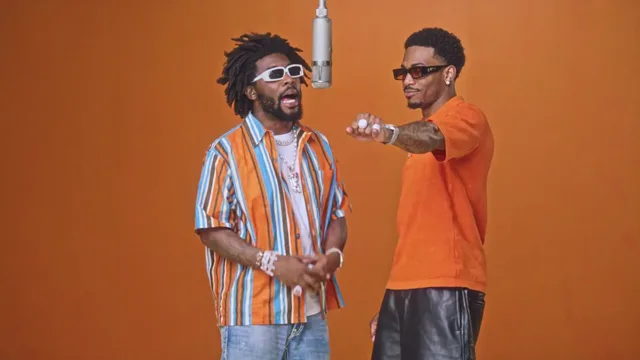
An AI duo clip can look convincing in its first frame and still become unusable a few seconds later. Two faces may merge during an overlap, one person may switch sides, or a hand may cover the detail that made a face recognizable. The useful response is to identify the moment and the type of failure. Repeating the same request without learning anything consumes time and can consume credits without improving the chance of a usable result.
This guide gives you a practical review sequence for the two-photo workflow on Hotel Lobby AI Video. It is not a benchmark, a claim of perfect face preservation or an automatic face-quality assessment. It is a way to organize your own observations. You can prepare the inputs in the embedded generator and use the questions below to decide what to change. No private photo or generated result needs to be published as an example.
Make your video here
Choose one photo per performer, preview them and swap positions. Generation requires sign-in and uses your account credits. Use photos you have permission to upload.
Choose your performers
Clear front-facing photos work best — one person per image, no covered faces.
Two people performing a short studio duet, recast with your two photos.
Each generation uses credits from your balance.
Sign in to generate videos.
Signing in keeps selected photos in this browser for your return. The draft expires after 20 minutes and is removed on return or the next visit after expiry.
Template preview — your two photos replace these performers.
Preview and change the motion template
Classic Duo
Two people performing a short studio duet, recast with your two photos.
High Energy Duo
A faster, more upbeat two-person studio performance.
Soft Groove Duo
A slower, relaxed two-person studio groove.
Still to Motion
A still portrait brought into gentle motion.
Minimal Motion
Subtle movement with a minimal set and camera.
Kangaroo Boxer
A single boxing-kangaroo motion source from your provided material.
Duo Conversation
Two performers facing each other in a dialogue scene.
Cinematic Duo
A wider, more cinematic two-person framing.
Tools used in this guide
Check the input before diagnosing the model
Look at each reference image at the size of an ordinary phone screen. Can you recognize the intended person without zooming in? Is there one obvious face, or are several people competing for attention? Is the face evenly lit, or does a strong shadow hide half of it? These questions expose problems that a large file size can hide. A 10 MB photograph can still contain a tiny, blurry face surrounded by a huge background.
Keep the original photo available and work with a copy when you adjust the crop. Leave enough context around the head to make the orientation clear. Avoid aggressive smoothing or sharpening that changes eyes, teeth or skin texture. The goal is a faithful reference, not a more dramatic portrait. If you cannot inspect the identity clearly in the source, do not expect a video model to recover missing personal detail with certainty.
Make the assignment unambiguous
Photo A represents the left performer and Photo B the right performer in the default duo workflow. Check the labels after selecting the files, then use Swap positions if the assignment is reversed. The local preview is the quickest place to catch an accidental duplicate upload. Two previews of the same person can be intentional, but they should not result from selecting the wrong file twice.
Do not combine both people into a collage and place that collage in both slots. The purpose of separate references is to make each intended identity explicit. Likewise, do not assume the model will choose the largest person in a group picture. If a partner only supplied a group shot, obtain a suitable individual crop or another photo with permission. Resolving this ambiguity before rendering is cheaper and clearer than trying to infer after the fact which person the model used.
Match the motion to the evidence in the photo
Watch the selected template preview once with the sound off. Focus on head turns, fast arm movement, overlap and changes in camera angle. Those moments are the places where the model must infer detail that a still portrait does not show. A profile turn can reveal a side of the face that was absent from a front-facing image. An overlapping hand can temporarily hide the very feature you were using to recognize the person.
For an initial experiment, choose a template whose motion is compatible with your intended result and easy to review. A fast or crowded scene may be entertaining, but it gives you more interacting variables. Do not describe a source preview as a result from your own photos. It demonstrates the movement and framing only. After you have one acceptable result, you can decide whether a more energetic variation is worth another deliberate generation.
Review three moments and write one specific note
Check the opening, the point of maximum movement and the ending. Then watch the entire clip at normal playback speed. A paused frame can exaggerate a momentary artifact, while normal playback can hide a brief identity swap that becomes obvious when someone shares a screenshot. Both views matter. Inspect each performer independently instead of letting one convincing face make the whole clip feel correct.
Write a note such as left person's face changes during the head turn, or both people look correct but the hands merge in the middle. Avoid a note such as bad quality, which gives you no direction. Also record the template and resolution so you can compare like with like. You do not need to record private filenames or upload personal observations to an analytics service. A short private note is enough to guide the next attempt.
Choose a retry that tests one explanation
If a face is unrecognizable from the opening frame, replace that person's reference with a clearer, less filtered photo and keep the other settings fixed. If a face is correct initially but changes during a fast turn, try a calmer template while keeping the references fixed. If the identities look correct but the output is too small for its intended display, consider the available resolution options. These are different experiments, and combining all of them makes the outcome hard to interpret.
Set a stopping point before you start. For example, decide which specific error would make the clip unsuitable for your use, then stop once the result passes that requirement. This is a personal acceptance rule, not a promise that a certain number of renders will succeed. If the same error persists across carefully chosen references and motions, the task may exceed the current workflow. More repetition is not evidence that the next result will solve it.
Distinguish visual quality from delivery problems
A clip with an identity artifact is different from a job that never reaches a downloadable result. If the status is still queued, processing or saving, wait for the actual status before treating it as a failure. The interface can report that a task is taking longer than expected. That message is not proof that the provider failed and is not itself confirmation that credits have been returned.
When a result is ready, use the provided MP4 download and open the saved file. Confirm that the file plays and is the version you reviewed. If the download does not work, preserve the visible task reference and contact support with the stage at which it failed. Do not include your password or payment details. Separating rendering, storage and download problems helps support address the actual step instead of asking you to regenerate an otherwise usable video.
Prepare a shareable result without overclaiming
Before sharing, confirm that both people agree with the intended use of their images. Check the sound in the actual file and handle any added music separately. A funny personal remix and a brand advertisement have different expectations, so agree on the delivery context before making many variants. Avoid presenting a generated scene as footage of an event that really happened.
This workflow is valuable when it reduces uncertainty: separate portraits, clear assignment, a visible template and a reviewable MP4. Use those concrete controls as your decision points. The product does not promise perfect likeness, a specific generation speed or a viral outcome. A successful session is one in which you obtain a result you can honestly use, or recognize a limitation soon enough to stop wasting effort.
Frequently asked questions
Will selecting 720p fix a face that looks wrong?
Not necessarily. Resolution changes output pixel dimensions. Try diagnosing the source photo, identity assignment and motion before treating resolution as the cause.
Should I upload a combined photo of both people?
For the two-photo workflow, use one clear person in each slot. A combined image makes it less clear which reference belongs to which performer.
Does this checklist analyze my face automatically?
No. It is a manual review guide. The embedded generator previews your selected images and runs the existing video workflow; it does not assign a biometric or quality score.
Should I keep pressing Generate when a job is slow?
No. Review the existing task's status first. Repeated submissions can create additional jobs and use more credits without accelerating the original task.
Sources and product details
Pick the moment
Each use case opens the same real generator with a template chosen for that occasion.
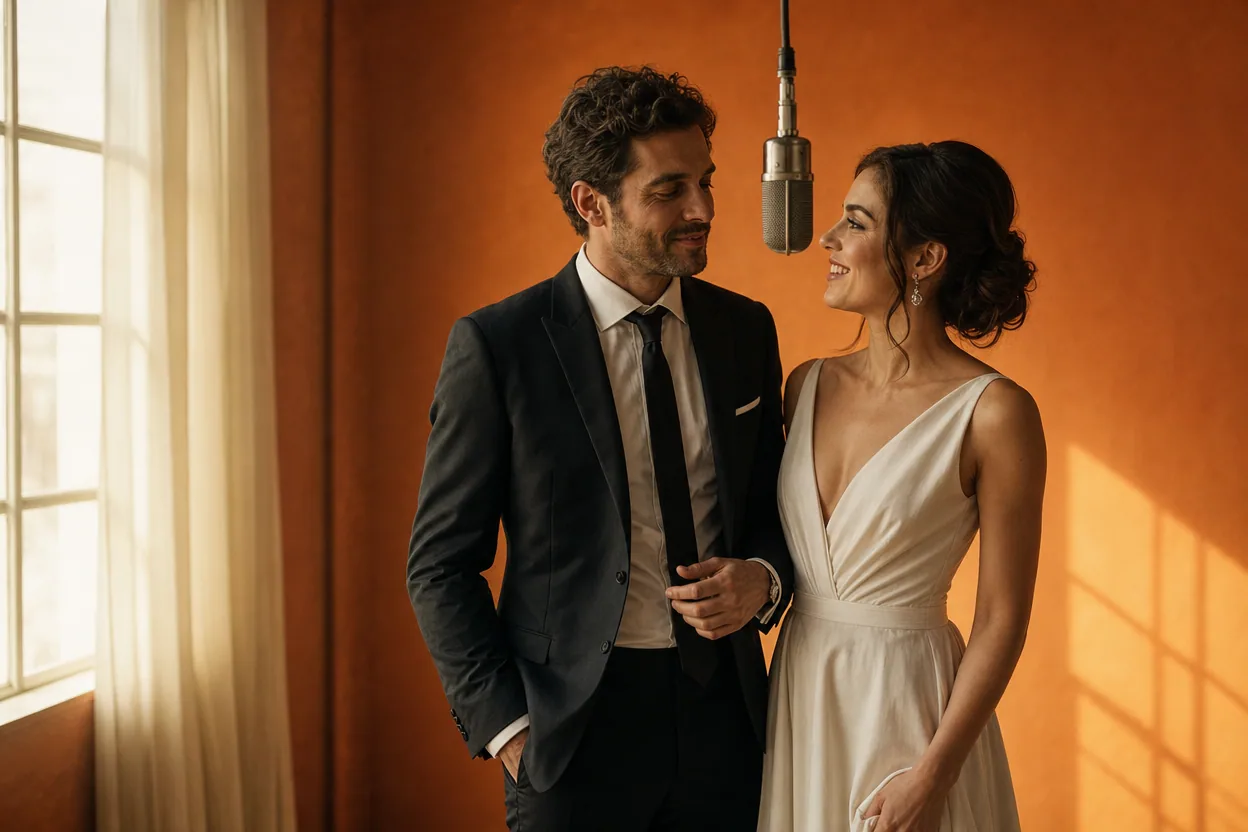
Wedding and couple keepsakes
Wedding Photo to Video
A wedding photo to video gives two formal portraits a shared moment of movement. You upload one photo of each person, choose a cinematic template, and the two faces are placed into the same short performance.
Open this use case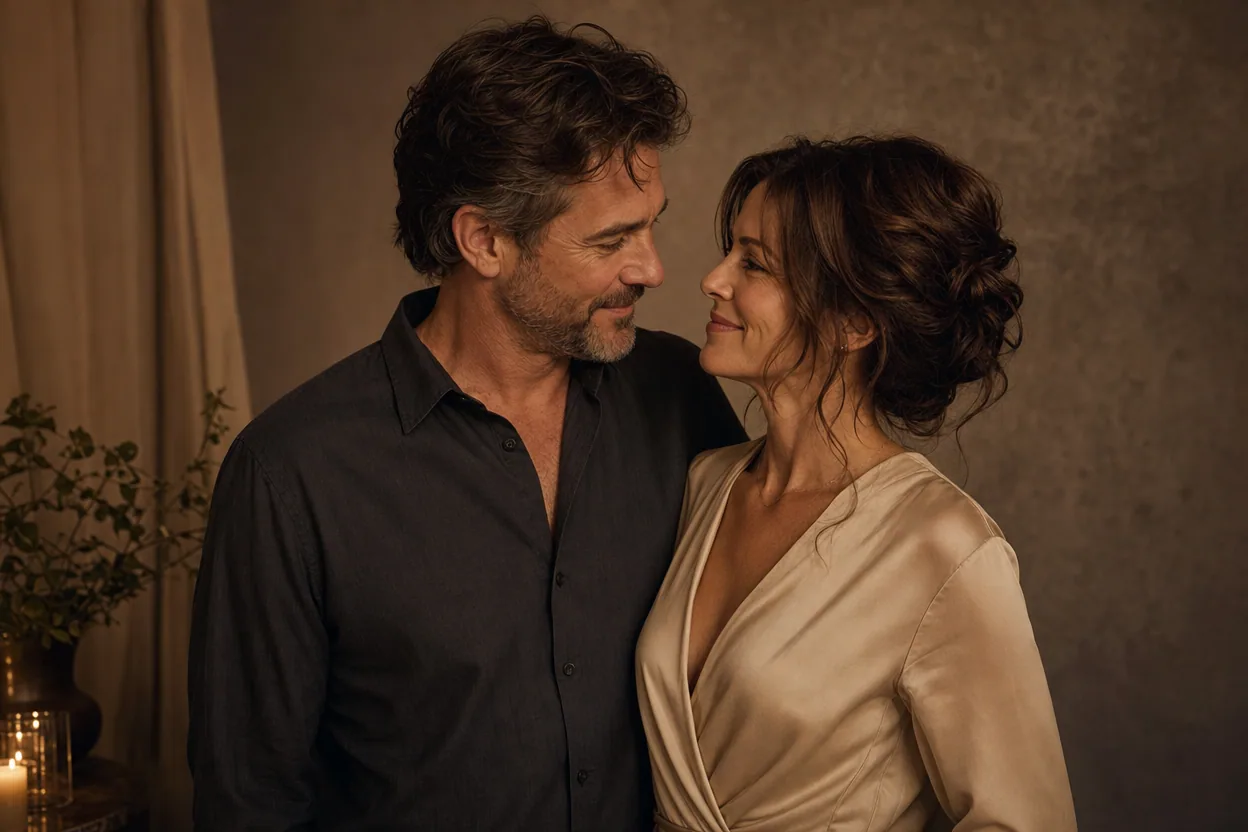
Anniversary gifts
Anniversary Photo Video
An anniversary photo video is a small digital gift made from two portraits. Instead of asking for a recent photo together, you can use the photos you already have and place both people into one gentle, moving scene.
Open this use case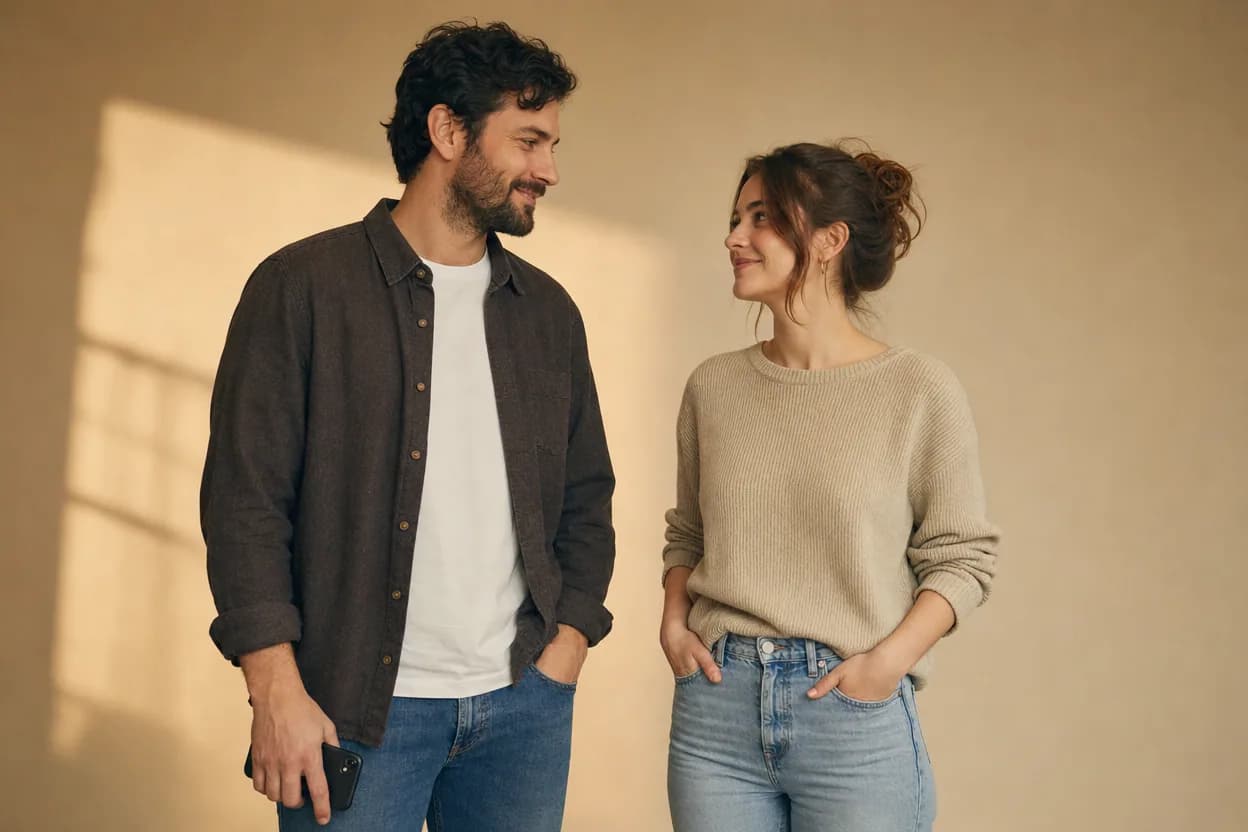
Long-distance relationships
Long Distance Couple Video
A long distance couple video gives two people in different places a shared visual moment. Each person supplies a photo, and the template places both of them inside one short scene.
Open this use caseRelated reading
 hotel lobby trend
Hotel Lobby Trend: Make a Two-Photo Performance Video
What the Migos-inspired trend means, how two portraits become a performance clip, and what to check before you share it.
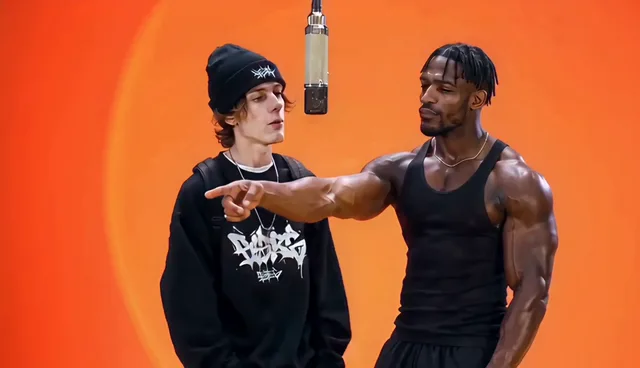 ai video from two photos
AI Video From Two Photos: How to Bring a Pair To Life
Two photos are all you need to produce a moving duo clip. Here is how motion transfer works, what to upload, and how to pick a template that fits your pair.
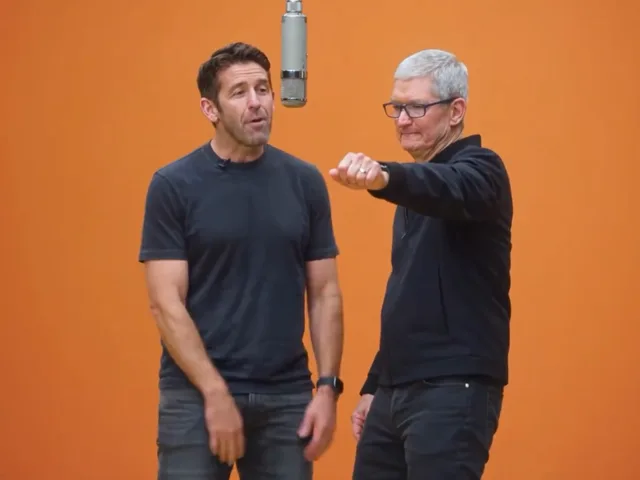 hotel lobby video template
Hotel Lobby Video Template: Picking the Right Preset Scene
Templates do the creative work in photo-to-video generation. Here is what each of the eight Hotel Lobby AI Video templates is built for.