photo to video ai
Photo to Video AI: How Still Images Become Moving Clips
A still photo is not the end of the story.
Reviewed against the live product on 2026-10-02. The generator offers 480p or 720p, one photo per performer, and a template-set length.
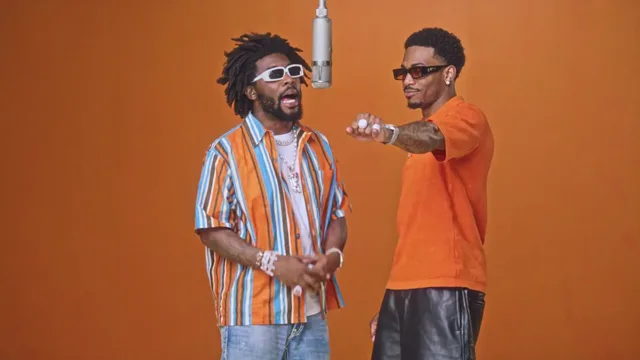
Photo to video AI covers a wide range of tools, and that breadth is exactly why the category confuses people. Two products can both promise to "turn a photo into a video" while doing completely different work. One might make a portrait blink and shift gently; another might place your face inside an entirely new scene with its own camera move and choreography.
Knowing which engine sits behind a tool tells you what it can and cannot do. It also explains why one tool accepts a single image while another insists on two, and why one output looks like a subtle animation while the other looks like a short film. Neither is better in the abstract — they solve different problems.
This guide separates the two main approaches, describes what each one produces, and gives you a practical way to choose a tool based on the result you actually want rather than the label on the box.
Make your video here
Choose one photo per performer, preview them and swap positions. Generation requires sign-in and uses your account credits. Use photos you have permission to upload.
Choose your performers
Clear front-facing photos work best — one person per image, no covered faces.
Two people performing a short studio duet, recast with your two photos.
Each generation uses credits from your balance.
Sign in to generate videos.
Signing in keeps selected photos in this browser for your return. The draft expires after 20 minutes and is removed on return or the next visit after expiry.
Template preview — your two photos replace these performers.
Preview and change the motion template
Classic Duo
Two people performing a short studio duet, recast with your two photos.
High Energy Duo
A faster, more upbeat two-person studio performance.
Soft Groove Duo
A slower, relaxed two-person studio groove.
Still to Motion
A still portrait brought into gentle motion.
Minimal Motion
Subtle movement with a minimal set and camera.
Kangaroo Boxer
A single boxing-kangaroo motion source from your provided material.
Duo Conversation
Two performers facing each other in a dialogue scene.
Cinematic Duo
A wider, more cinematic two-person framing.
Tools used in this guide
What photo to video AI means
At its core, photo to video AI takes one or more still images as input and produces a moving clip as output. Everything else — how much moves, how long the clip runs, whether the subject stays in place — depends on the method the tool uses.
Early versions of this technology produced little more than a slow pan or a shimmer across an image. Modern versions understand the subject well enough to move it, and some can rebuild an entire scene around it. The gap between those abilities is large, and the marketing language rarely makes the distinction clear.
So when you evaluate a tool, the useful question is not "does it animate photos?" but "what does it animate, and who decides?" From there, the whole category settles into two families.
The two families of photo animation
The first family is single-image animation. The tool looks at one photo and invents motion from what it sees: a slight turn of the head, a gentle sway, a flicker of expression. The image itself remains the frame, and the animation is layered on top. These tools are simple to use and work with a single portrait, but the motion tends to be subtle and the scene never changes.
The second family is motion transfer. Here a preset source clip supplies the movement, and your photo supplies the identity. Instead of inventing motion, the tool maps a real performance onto your face. That produces bolder, more structured movement — a full scene with timing and camera work — but it requires a template and, for paired scenes, two photos.
The two approaches feel different to use. Single-image tools ask only for a photo. Motion transfer asks for a photo plus a choice of scene, because the scene is what carries the movement.
- Single-image animation: one photo in, subtle self-contained motion out.
- Motion transfer: photo plus preset template, bolder scene-based motion.
- Single-image tools rarely change the setting around the subject.
- Motion transfer keeps a real scene's framing, lighting, and timing.
Matching the tool to the result you want
If your goal is a gentle, lifelike moment — a portrait that seems to breathe, a keepsake that moves just enough to feel alive — single-image animation is a natural fit. It needs minimal input and its restraint is a feature rather than a limitation.
If your goal is a scene, motion transfer is the stronger choice. It gives you structure: a defined action, a deliberate camera angle, and a sense of performance. The trade-off is that you choose from preset templates instead of describing your own scene, so the tool is at its best when one of its templates matches your intent.
Many people end up using both. A quiet portrait animation works for one project; a template-driven duo scene works for another. The two outputs do not compete, and knowing which family you need removes most of the frustration of picking a tool.
What the output actually looks like
Regardless of the method, the deliverable is a standard video file, usually an MP4. It plays in any normal video app, and it can be uploaded anywhere a video is accepted. That part is consistent, and it is the reason photo-to-video tools avoid the trap of proprietary formats you cannot take with you.
Resolution is where tools differ. Lighter animations often render at a modest size because the content is subtle. Scene-based generation gives you a real choice: a fast, lightweight resolution for testing and a sharper one for a final version. Hotel Lobby AI Video, for example, offers 480p and 720p, which lets you compare templates quickly and then re-run the winner at higher quality.
Length is usually set by the tool rather than the user. Single-image animations are typically short, and template-based clips take their length from the source scene. That constraint is normal and rarely a problem, since these clips are built for short-form viewing.
How to judge a photo-to-video tool
Start with the engine. Does the tool animate one image, or does it place your photo into a scene? The answer tells you what kind of result to expect and whether you will need one photo or two.
Then look at the input rules, because they reveal how much care the tool takes with identity. A tool that asks for a clear, single-subject portrait and checks file size and format is one that expects to preserve likeness. A tool that accepts anything and promises everything is usually the one that disappoints.
Finally, check what happens when a render fails. Generation is heavy work, and failures happen. A tool that returns the credits used for a failed or cancelled run respects your time; one that quietly keeps them does not. That policy is a fair signal of how the rest of the product is run.
- Which engine the tool uses, and whether that matches your goal.
- Photo requirements: subject count, angle, lighting, format, and size.
- Available resolutions and whether you can test cheaply before committing.
- What happens to credits or quota when a generation fails.
Keeping the likeness accurate
Accuracy comes down to the photo you supply. A clear, front-facing image with even light gives the model the most to work with. Anything that obscures the face — sunglasses, a mask, a deep shadow, a head turned to the side — reduces how closely the result resembles the original person.
Resolution matters too. A high-quality source file preserves fine detail that survives the render, while a small or heavily compressed image gives the model less information. If you only have a low-resolution copy of a photo, a sharper alternative will almost always produce a better clip.
For paired scenes, balance is its own kind of accuracy. Two photos with similar lighting and framing sit together naturally. When one is much darker or much closer than the other, the imbalance shows — and fixing the weaker photo is the most effective change you can make.
Practical ways people use it
The most common use is personal: turning a favorite photo into something that moves. A portrait of a couple, a picture of friends, or a thoughtful image with no video counterpart all become viable material. The appeal is that the photo already holds the memory — the tool just gives it motion.
A second use is testing ideas before committing to a shoot. If you are planning a paired scene and want to see how two people look together in it, a quick 480p generation answers the question without booking time or gear.
A third is simply play. Preset templates invite experimentation: the same two faces in a fast scene, then a slow one, then a wide cinematic frame. Because no prompt is required and no editing is involved, trying a second or third version costs minutes, not days.
Frequently asked questions
What is photo to video AI?
It is any tool that takes a still image as input and produces a moving video clip. Some tools animate a single photo gently, while others place your photo into a preset scene with its own motion.
Do I need a video of myself to animate a photo?
No. Single-image tools work from the photo alone, and template-based tools carry the motion for you. You supply the photo, not footage.
Can I animate more than one photo at once?
With a two-person template, yes. You upload one photo per performer, and both faces appear together in the same scene.
How long do the generated clips run?
Length comes from the template or the tool rather than from a slider. Preset scenes set their own duration, which keeps the output short and consistent.
What file do I get at the end?
A standard MP4 video file that plays in any normal video app and can be uploaded wherever video is accepted.
Which photo works best?
A clear, front-facing portrait with even lighting and a single visible subject. JPG, PNG, and WebP up to 10 MB each are accepted.
Pick the moment
Each use case opens the same real generator with a template chosen for that occasion.
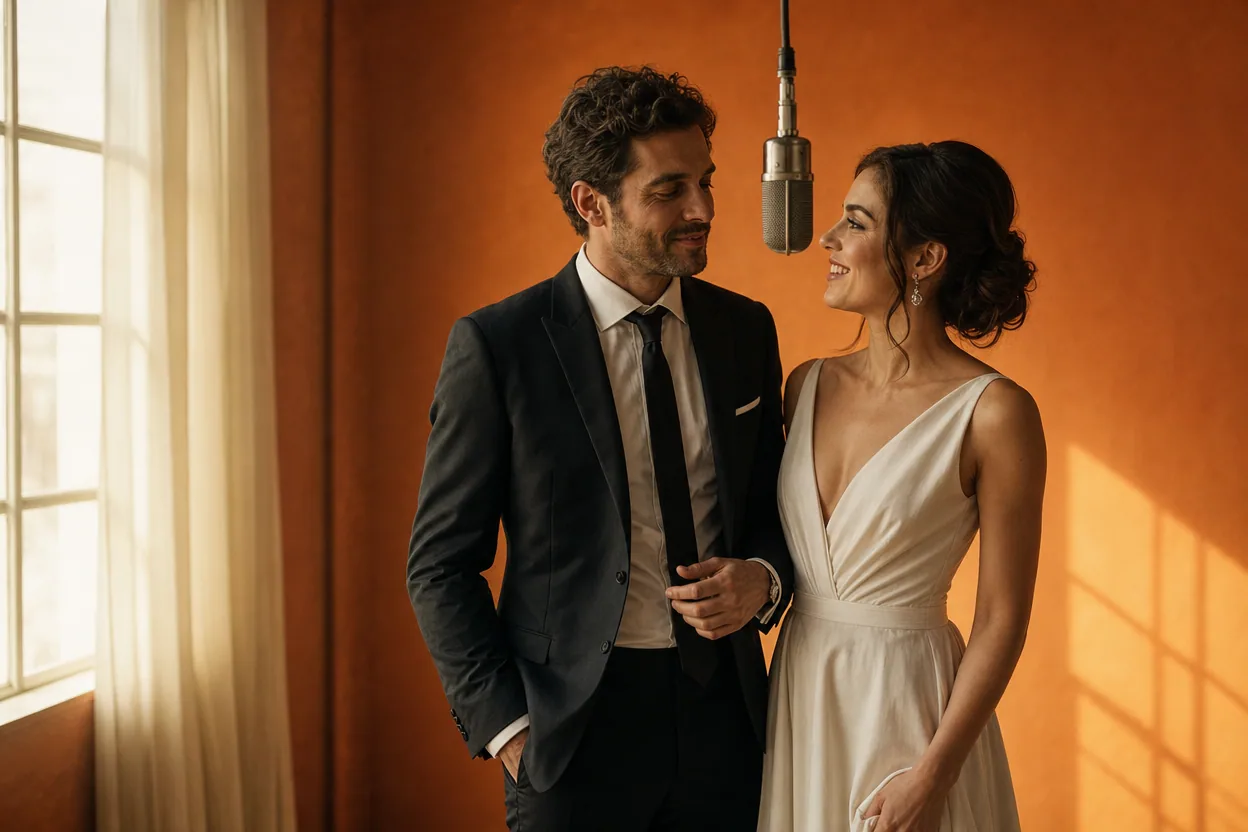
Wedding and couple keepsakes
Wedding Photo to Video
A wedding photo to video gives two formal portraits a shared moment of movement. You upload one photo of each person, choose a cinematic template, and the two faces are placed into the same short performance.
Open this use case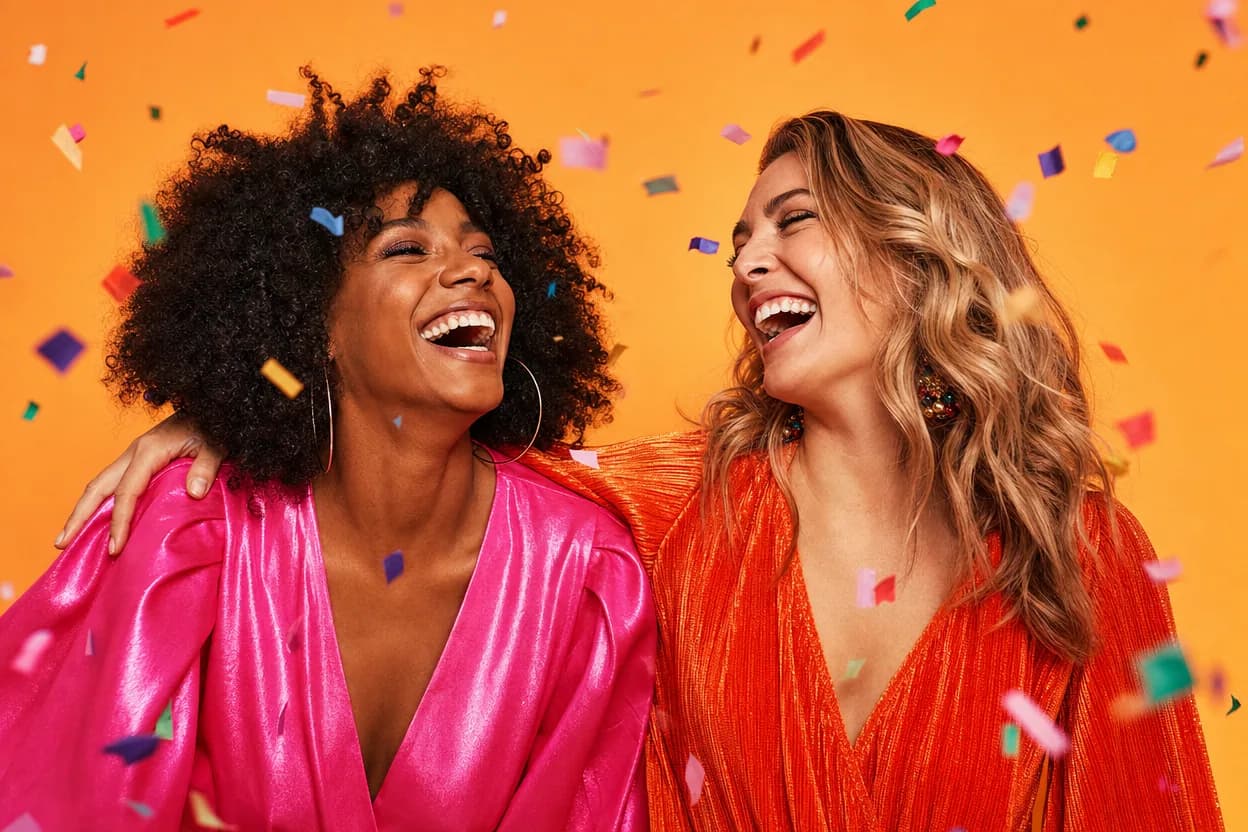
Birthday greetings
Birthday Photo to Video
A birthday photo to video lets two people share one short, upbeat clip without filming together. It works for a joint greeting, a long-distance message, or a playful post for someone who is hard to gather in one room.
Open this use case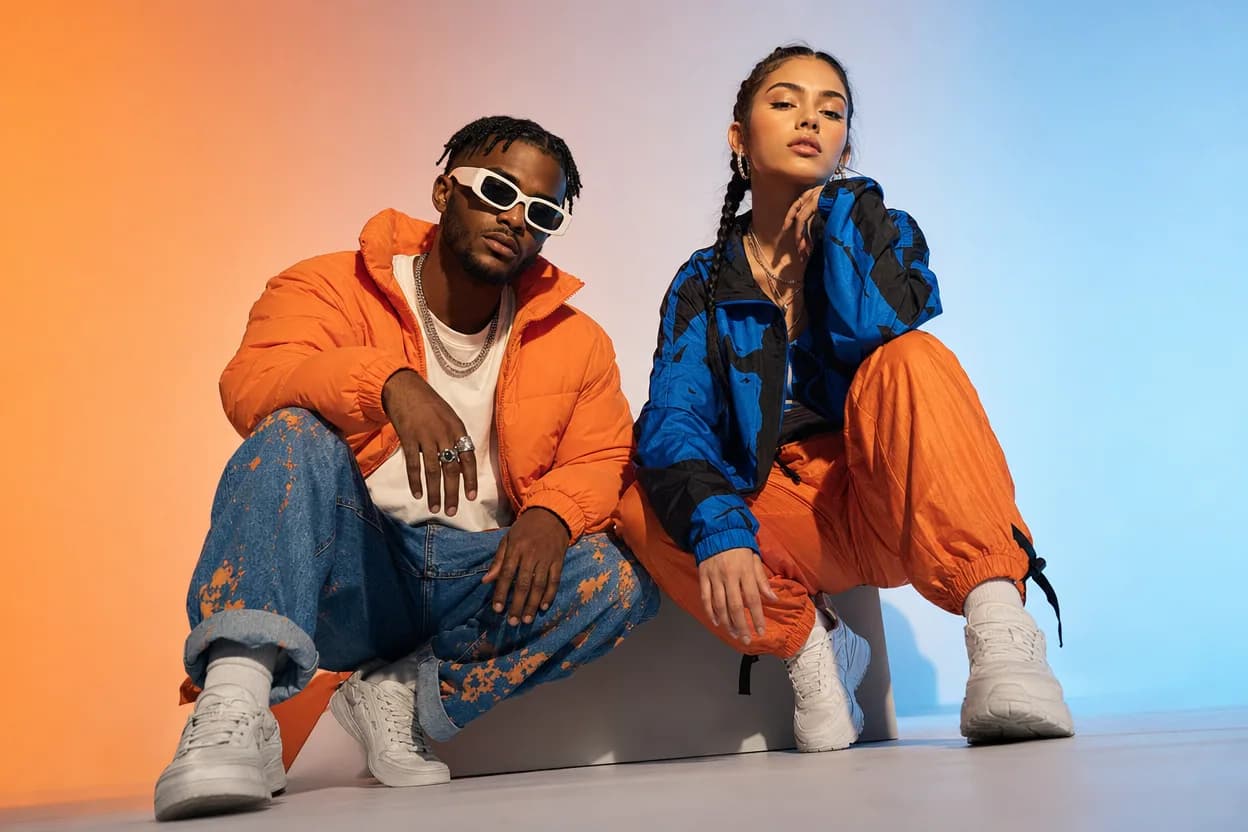
Social clips
Social Media Duo Video
A social media duo video is a short, shareable clip built from two portraits. It gives a post a moving visual without a shoot, a script, or a shared filming session.
Open this use caseRelated reading
 how to make an ai video from photos
How to Make an AI Video From Photos: A Complete Walkthrough
A complete walkthrough of turning photos into a generated video, from choosing the images to downloading the finished MP4.
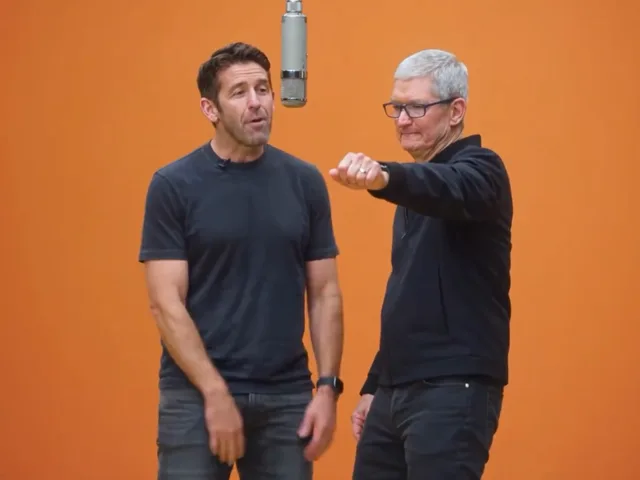 best ai video generator from photos
Best AI Video Generator From Photos: How to Judge One
The best AI video generator from photos is the one that matches your job. Use this checklist to tell a real two-photo pipeline from a single-image animation.
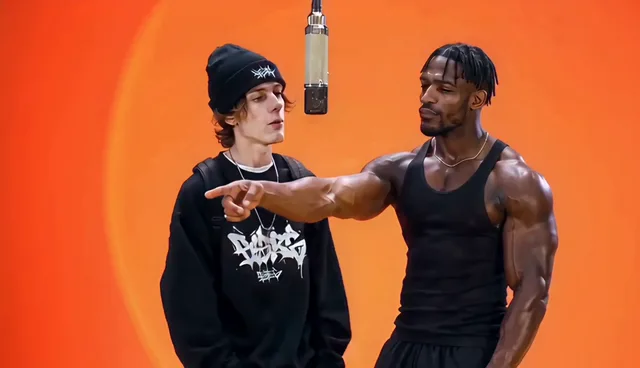 ai video from two photos
AI Video From Two Photos: How to Bring a Pair To Life
Two photos are all you need to produce a moving duo clip. Here is how motion transfer works, what to upload, and how to pick a template that fits your pair.