ai video from two photos
AI Video From Two Photos: How to Bring a Pair To Life
Two portraits, one moving scene.
Reviewed against the live product on 2026-09-30. The generator offers 480p or 720p, one photo per performer, and a template-set length.
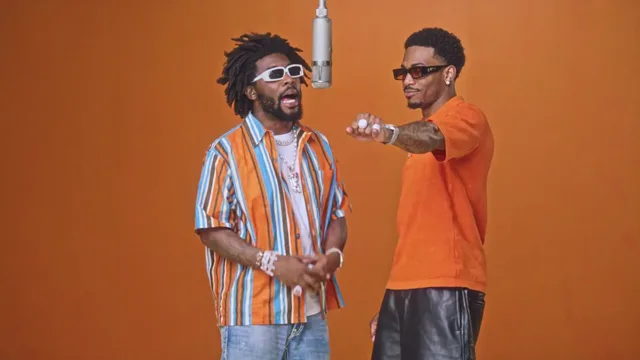
Making an AI video from two photos is the shortest path from the pictures you already have to a clip that moves. You do not need footage, a script, or editing software. You upload one portrait for each person, choose a preset scene, and the tool carries both faces through the motion of that scene. The output is a normal MP4 file that plays anywhere.
The idea is simple once you see the split of work. The template owns the hard part — camera position, lighting, timing, and choreography. Your photos own the part that makes the result feel personal: who is on screen. Because those two jobs are separate, you can change the people without changing anything else, and you can change the scene without reshooting the people.
This article covers how two-photo generation works, what each upload needs to contain, which templates suit different kinds of pairs, and the mistakes that most often turn a promising pair of photos into a disappointing clip.
Make your video here
Choose one photo per performer, preview them and swap positions. Generation requires sign-in and uses your account credits. Use photos you have permission to upload.
Choose your performers
Clear front-facing photos work best — one person per image, no covered faces.
Two people performing a short studio duet, recast with your two photos.
Each generation uses credits from your balance.
Sign in to generate videos.
Signing in keeps selected photos in this browser for your return. The draft expires after 20 minutes and is removed on return or the next visit after expiry.
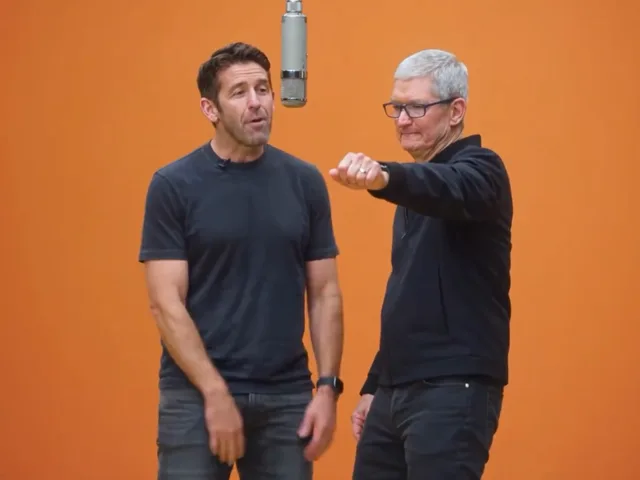
Template preview — your two photos replace these performers.
Preview and change the motion template
Classic Duo
Two people performing a short studio duet, recast with your two photos.
High Energy Duo
A faster, more upbeat two-person studio performance.
Soft Groove Duo
A slower, relaxed two-person studio groove.
Still to Motion
A still portrait brought into gentle motion.
Minimal Motion
Subtle movement with a minimal set and camera.
Kangaroo Boxer
A single boxing-kangaroo motion source from your provided material.
Duo Conversation
Two performers facing each other in a dialogue scene.
Cinematic Duo
A wider, more cinematic two-person framing.
Tools used in this guide
What it means to make an AI video from two photos
Most people meet AI video through text: you describe a scene and the model dreams it up. Two-photo generation is different. There is no description to write. Instead, the tool has a library of finished motion templates, and each template is a real, licensed clip of a scene being performed. Your job is to say who should appear in that scene.
That is why the input is two photos rather than a paragraph. Identity is the missing ingredient, not story. A single portrait would give you one character; two portraits give you a pair, which is what most templates are built to hold. The generator places each photo into its own performer slot, keeps them separate throughout, and renders the scene with both faces intact.
The result is not a slideshow or a slow zoom. Both people are inside a moving scene from the first frame, and the camera and lighting come from the template rather than from your images.
How motion transfer turns portraits into motion
Motion transfer is the technique behind the result. A source video defines movement over time: where each body is, how it shifts, and how the camera moves around it. The model studies that movement and studies your photos, then rebuilds the scene around your two faces frame by frame. Because the movement is continuous, the clip reads as a performance rather than a set of stills.
Two photos matter here because the model needs to track two subjects independently. If both faces arrive in one image, the model has to guess the boundary between them, and small errors compound across dozens of frames. Two clean portraits remove the ambiguity and give each performer a stable identity to carry through the scene.
You will sometimes hear this described as "no editing." That is accurate in the sense that you never open a timeline, keyframe a position, or handle a green screen. The trade-off is that your creative control lives in template choice rather than in frame-level direction, which is exactly what keeps the workflow short.
- The template supplies movement, framing, and duration.
- Each photo supplies one performer identity.
- No prompt, timeline, or manual masking is involved.
- The render produces a single downloadable video file.
Step by step: from two photos to a finished clip
The whole process lives on one page. The generator sits at the #generator anchor on the home page, and the flow is the same every time.
- Choose two photos: one clear, front-facing portrait for each performer.
- Upload them into the two slots — JPG, PNG, or WebP, up to 10 MB each.
- Pick a preset template that matches the mood you want.
- Use Swap if you want the performers on the opposite sides.
- Choose 480p for a quick test or 720p for a sharper final result.
- Generate, follow the status while it renders, then preview and download the MP4.
Why two photos often beat a written prompt
Prompts are powerful when you have a scene in your head and no reference material. Two photos win when the opposite is true: you know exactly who should be on screen but have no way to describe them that a model would get right. A description of a face is fuzzy; the face itself is exact.
There is also a consistency argument. A prompt-based scene reruns from scratch each time, so small wording changes shift the result. A template reruns the same scene every time, which means the only variable is who you upload. If you generate the same template twice with the same photos, you are working with a repeatable setup rather than a fresh roll of the dice.
For paired content — couples, friends, colleagues, or two characters — that repeatability is the point. You can put the same two people into several templates and compare, without rewriting anything.
Choosing a template for your pair
Templates carry a mood, so start there. If your photos are warm and relaxed, a slower scene keeps that feeling. If they are bright and playful, a higher-energy scene matches them better. Reading each template description before you upload saves you from generating a clip that technically works but feels off.
Two templates deserve a note. Still to Motion is built around a still portrait drawn into gentle movement, which suits a restrained result. Kangaroo Boxer is a single-performer source, so if you only have one usable photo it is the right pick — but it is not a duet. The remaining six are designed for two people and are the natural home for a pair of portraits.
If you cannot decide, run a fast 480p pass across two or three candidates and compare. That costs less time than reasoning about it, and seeing your own faces in each scene makes the choice obvious.
Mistakes that weaken a two-photo video
The most common mistake is uploading a photo where the face is small or partially hidden. A wide group shot, a face behind sunglasses, or a profile turned nearly sideways all give the model less identity to work with, and the final clip looks less like the person in the photo.
The second mistake is mismatched inputs. One crisp, evenly lit portrait next to a dark, blurry one makes the pair look unbalanced, because each performer is only as clear as the photo behind it. Retaking or choosing a better version of the weaker photo usually improves the pair more than anything else you can do.
The third mistake is impatience. Generation takes longer than editing a photo, and reloading mid-run does not speed it up. Let the status finish. If a run does fail or gets cancelled, the credits for it return to your balance automatically, so a retry does not leave you short.
Getting the most from the finished file
Once the clip is ready, download the MP4 and keep it — it is a standard video file, not something locked inside the tool. The template fixes the length, so if you want a shorter edit for a specific app you can trim it in whatever editor you already use, though trimming is entirely optional.
If you plan to use the video somewhere public, remember that you are responsible for the photos you upload. Use images you have the right to use, and make sure the people in them are comfortable appearing in a generated clip. A good result is one you can show without a second thought.
Frequently asked questions
Can I make a video with just one photo?
Yes, if you choose a single-performer template. The Kangaroo Boxer template is built for one person, while the duet templates expect two photos, one per performer.
Do the two photos need to be of different people?
They are treated as two separate performers, so they normally are. Uploading the same face twice fills both slots with that likeness rather than creating two distinct people.
Is a prompt required to make an AI video from two photos?
No. You choose a preset template instead of writing a prompt, and the template defines the scene, the motion, and the clip length.
What photo formats work best?
JPG, PNG, and WebP up to 10 MB each are accepted. Clear, front-facing photos with even lighting give the most reliable results.
Can I change the order of the two people?
Yes. Use Swap before generating to flip which photo fills the left and right performer slots.
What resolution should I choose?
Use 480p to test templates quickly and 720p for a sharper version you plan to keep or share.
Pick the moment
Each use case opens the same real generator with a template chosen for that occasion.
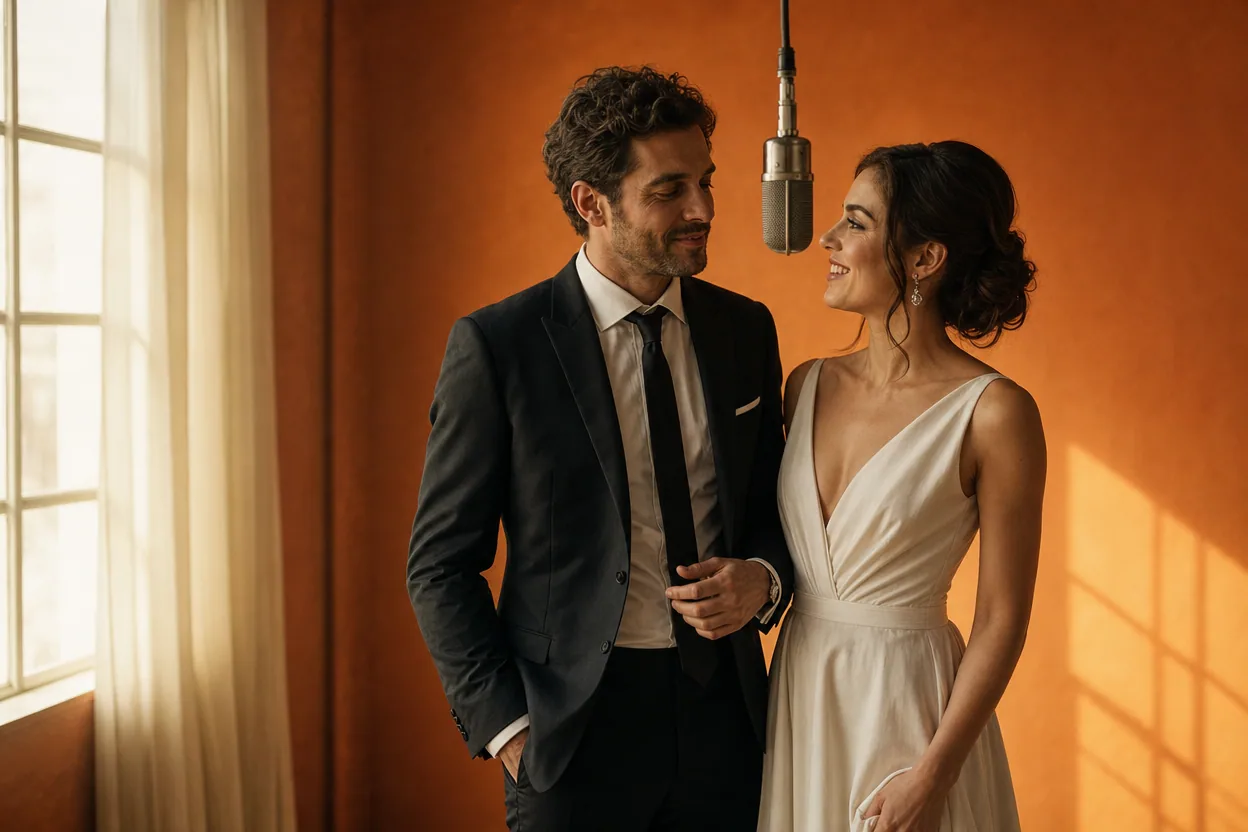
Wedding and couple keepsakes
Wedding Photo to Video
A wedding photo to video gives two formal portraits a shared moment of movement. You upload one photo of each person, choose a cinematic template, and the two faces are placed into the same short performance.
Open this use case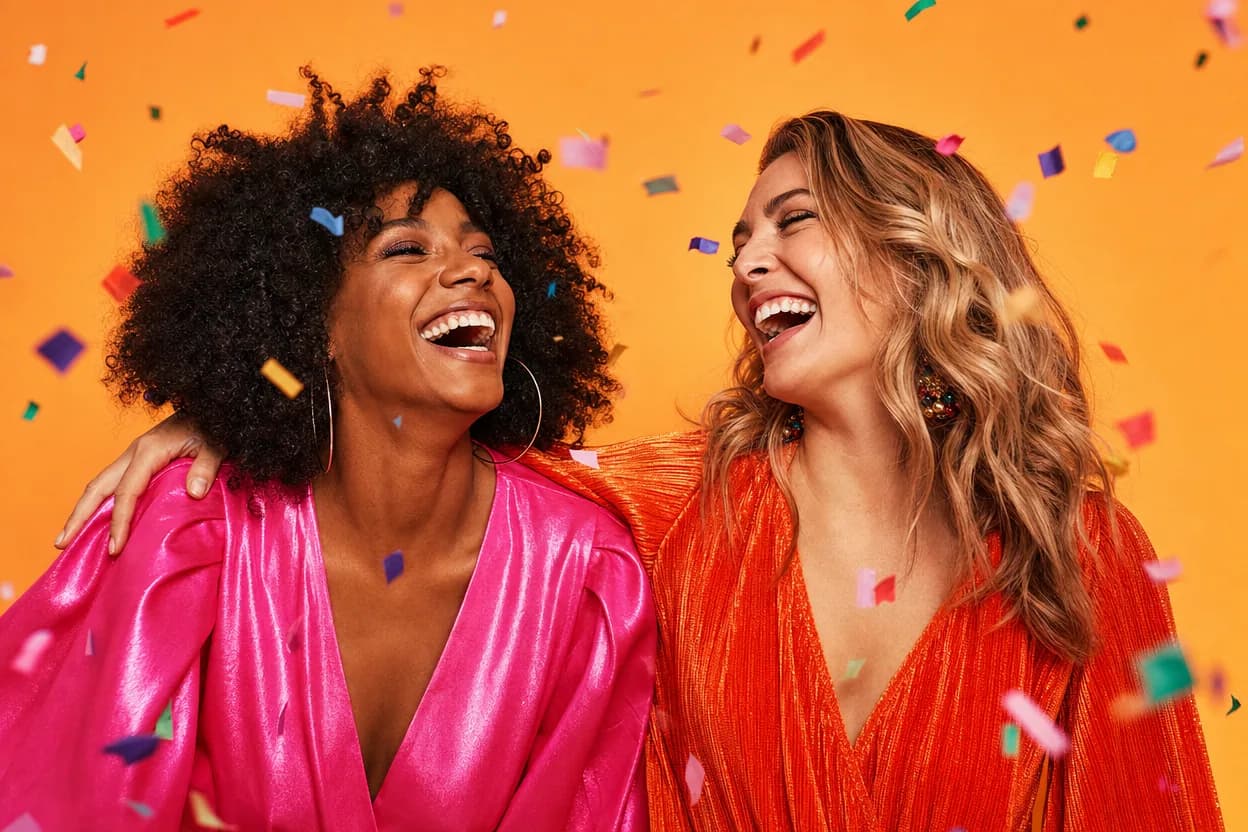
Birthday greetings
Birthday Photo to Video
A birthday photo to video lets two people share one short, upbeat clip without filming together. It works for a joint greeting, a long-distance message, or a playful post for someone who is hard to gather in one room.
Open this use case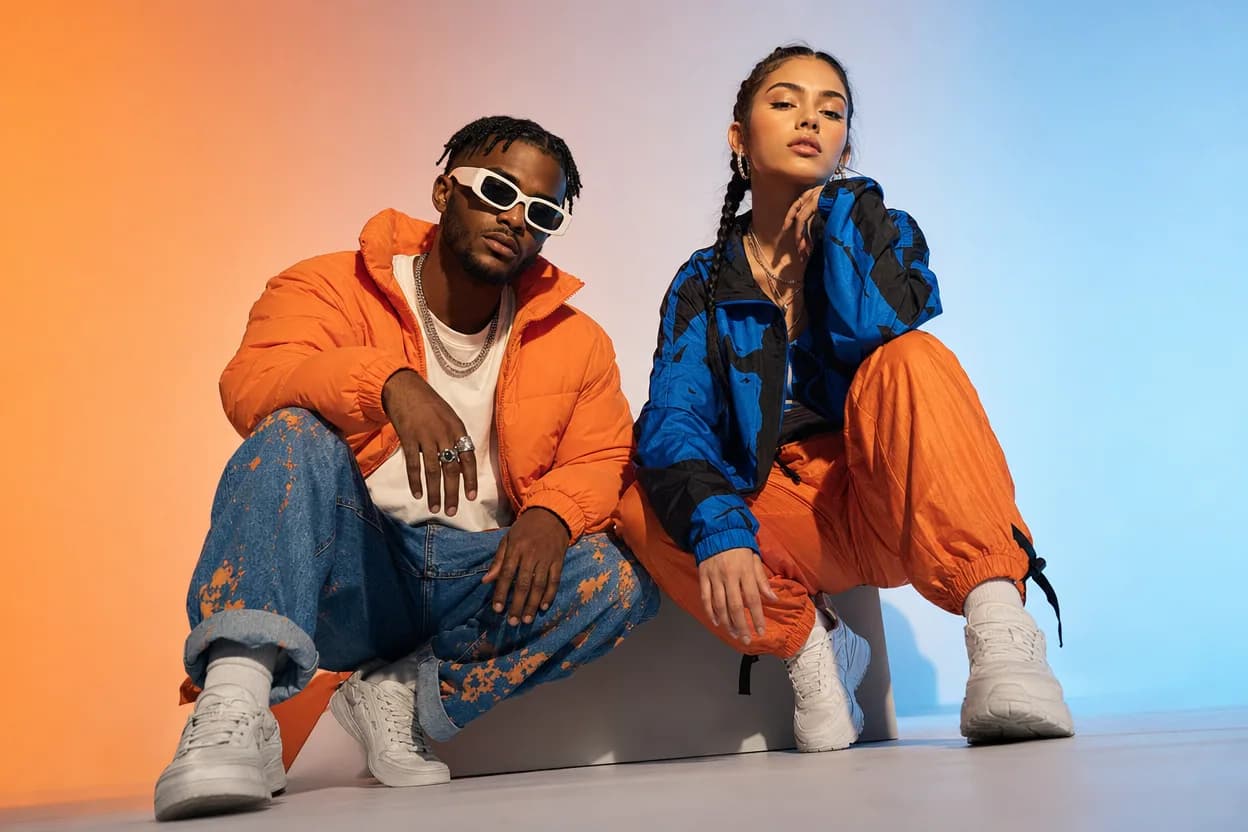
Social clips
Social Media Duo Video
A social media duo video is a short, shareable clip built from two portraits. It gives a post a moving visual without a shoot, a script, or a shared filming session.
Open this use caseRelated reading
 hotel lobby ai video generator
Hotel Lobby AI Video Generator: Turn Two Photos Into a Duo Video
Learn what a hotel lobby AI video generator does, why two photos are enough, and how preset motion templates turn portraits into a finished duo clip.
 two person ai video generator
Two Person AI Video Generator: Make a Clip With Both of You
Want both people in the same moving scene without filming? A two person AI video generator uses one photo each and a preset template to do exactly that.
 photo to video ai
Photo to Video AI: How Still Images Become Moving Clips
Photo to video AI is a broad category with two very different engines inside. Learn how each one works and how to pick the right job for your image.