hotel lobby ai video generator
Hotel Lobby AI Video Generator: Turn Two Photos Into a Duo Video
Two photos in, one cinematic duo video out.
Reviewed against the live product on 2026-09-28. The generator offers 480p or 720p, one photo per performer, and a template-set length.
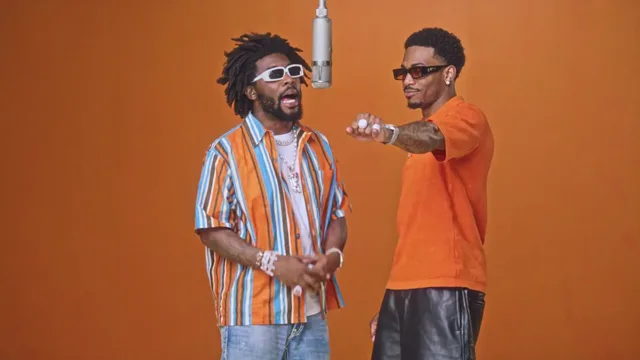
A hotel lobby AI video generator is a tool that turns still portraits into a short, polished video featuring two people. Instead of recording a scene, you upload one photo for each performer, choose a preset motion template, and let the system generate a clip where both people move together. The result is a downloadable MP4 you can keep, post, or send to someone.
The Hotel Lobby trend refers to AI remakes inspired by Quavo and Takeoff’s performance of the song Hotel Lobby. This independent tool uses selectable motion templates and your reference photos. A generated clip is not the original performance, and using the tool does not grant rights to its music. Preview the selected template, inspect the result, and use audio you are allowed to publish.
This guide explains what the generator does, why two ordinary photos are enough, how to pick a template, and what to check before you generate. If you are comparing tools, it also covers the specific things to look for so you can tell a real two-photo pipeline from a single-image animation dressed up as one.
Make your video here
Choose one photo per performer, preview them and swap positions. Generation requires sign-in and uses your account credits. Use photos you have permission to upload.
Choose your performers
Clear front-facing photos work best — one person per image, no covered faces.
Two people performing a short studio duet, recast with your two photos.
Each generation uses credits from your balance.
Sign in to generate videos.
Signing in keeps selected photos in this browser for your return. The draft expires after 20 minutes and is removed on return or the next visit after expiry.
Template preview — your two photos replace these performers.
Preview and change the motion template
Classic Duo
Two people performing a short studio duet, recast with your two photos.
High Energy Duo
A faster, more upbeat two-person studio performance.
Soft Groove Duo
A slower, relaxed two-person studio groove.
Still to Motion
A still portrait brought into gentle motion.
Minimal Motion
Subtle movement with a minimal set and camera.
Kangaroo Boxer
A single boxing-kangaroo motion source from your provided material.
Duo Conversation
Two performers facing each other in a dialogue scene.
Cinematic Duo
A wider, more cinematic two-person framing.
Tools used in this guide
What a hotel lobby AI video generator actually does
Under the hood, the tool performs motion transfer. A preset template contains a short source video: two people performing a set piece in a studio, with fixed framing, lighting, and timing. The generator keeps that scene and its choreography, then replaces the original performers with the people from your two photos. You are not describing a scene in text or directing camera angles. You are supplying the faces and letting a finished scene do the rest.
That distinction matters when you shop for a tool. Many "photo to video" products animate a single image: a portrait blinks, smiles, or drifts gently. That is useful, but it is not a duo video. A true two-photo pipeline accepts two separate uploads, assigns each one to a performer slot, and keeps both people visible and moving at the same time.
Because the template decides the scene, the output is consistent. Two people who generate the same template get the same camera move and the same rhythm, with their own faces in place. Consistency is what makes the format useful for anyone who needs a recognizable look without learning video editing.
- Two separate photo uploads, one per performer, instead of a single image.
- A preset template that supplies the scene, framing, and movement.
- No text prompt and no manual editing step.
- A finished MP4 file you can download when the render completes.
Why two photos are enough
You might expect a video generator to need a video of you first. Motion transfer flips that. The movement already exists in the template, so the only thing missing is the identity of the people on screen. One clear, front-facing photo gives the model enough detail — face shape, hair, skin tone, and expression — to place that person into the scene and carry their likeness through the motion.
Two photos means two identities. The left performer and the right performer each get their own portrait, and the generator keeps them separated as it works. This is why a group photo is a poor substitute: when two faces share one frame, the model has to guess where one person ends and the other begins. Two clean portraits remove that guesswork.
The practical payoff is speed. You do not need a video shoot, a script, or a location. You need two photos you probably already have, a template that matches the mood you want, and a couple of minutes to run the generation.
How to use the generator, step by step
The workflow is deliberately short. The home page carries the generator at the #generator anchor, and the steps below are the same ones the tool walks you through.
- Pick two photos: one for the left performer, one for the right. Choose shots with a single, clearly visible subject each.
- Upload them into the two photo slots. Accepted formats are JPG, PNG, and WebP, up to 10 MB per image.
- Choose a preset template. Each template sets the scene, the mood, and the pacing.
- If the positions are wrong, use Swap to flip the left and right performers before you generate.
- Select a resolution — 480p for a quick check, 720p when you want more detail — and start the generation.
- Watch the status while the clip renders. If a run fails or is cancelled, the credits for that run are returned to your account automatically.
- Preview the result and download the MP4.
The eight preset templates
Templates are the creative control in this workflow. Each one is a complete scene with its own energy, so choosing a template does more than pick a filter — it decides how your two performers move, how close the camera sits, and how long the clip runs. Hotel Lobby AI Video ships eight preset templates, each tied to a real, licensed source video.
Two of them are built for a single performer rather than a pair, which is a useful reminder to read the description before you upload. If you only want one person on screen, choose one of those; if you want a duet, the other six are designed for two people.
- Classic Duo — two people performing a short studio duet, the most balanced starting point.
- High Energy Duo — a faster, more upbeat two-person studio performance.
- Soft Groove Duo — a slower, relaxed two-person studio groove.
- Still to Motion — a still portrait brought into gentle motion.
- Minimal Motion — subtle movement with a minimal set and camera.
- Kangaroo Boxer — a single-performer motion source, built for one person.
- Duo Conversation — two performers facing each other in a dialogue scene.
- Cinematic Duo — a wider, more cinematic two-person framing.
What makes a good input photo
The template does not need a perfect portrait, but it does need a readable face. A single subject with even lighting and a straight-on angle gives the cleanest mapping. Sunglasses, masks, heavy shadows, or a face turned far to the side all reduce how much detail the model can carry into the scene, and the final video reflects that.
Frame loosely enough that the head and shoulders are fully inside the image. A tight crop can cut off part of the head and leave the model with less to work from. Higher-resolution files also preserve more detail through the render, so prefer the largest clear version of a photo you have rather than a screenshot of a thumbnail.
Finally, mind the pairing. Two photos with similar lighting and similar framing sit together more naturally than one bright, close headshot and one dark, distant shot. Improving the weaker of the two photos usually lifts the whole clip more than upgrading the better one.
Choosing between 480p and 720p
The generator offers two resolutions. 480p is the faster, lighter option: it renders quickly and produces a smaller file, which is handy when you are testing several templates to see which one fits your photos. 720p takes longer and produces a sharper clip for anything you plan to share more widely or keep as a final version.
A sensible routine is to run your first pass at 480p, compare a couple of templates, then re-run the winner at 720p. Because the template fixes the length of the clip, there is no separate duration setting to manage — the template you choose determines how long the video runs.
Tips for getting a result you keep
Start with the template whose energy matches your photos. Two formal portraits often land best in Cinematic Duo or Duo Conversation, while brighter, casual shots pair well with the higher-energy templates. Matching mood to material is faster than fighting a mismatch.
Give the render time. Video generation is heavier than image generation, and rushing to reload the page mid-run helps no one. The status indicator tracks progress, and if a run genuinely fails you get the credits back, so a failed attempt costs you time rather than balance.
Keep the pair of photos consistent. If you swap in a new photo later, re-run the template rather than assuming the old result still represents the new inputs. And if you are unsure which performer should sit on which side, use Swap before generating — fixing the order afterwards means a fresh run.
Frequently asked questions
Do I need a video of myself to use the generator?
No. You need two still photos, one per performer. The preset template already contains the scene and the movement, so your photos only supply the people.
How many photos do I upload?
Two — one for the left performer and one for the right. Using a single group photo is not recommended, because the model has to separate the faces on its own.
Do I have to write a prompt?
No prompt is required. You choose a preset template instead, and the template defines the scene, the motion, and the length of the clip.
What resolutions are available?
Generations are available in 480p and 720p. 480p is faster for testing, and 720p gives a sharper final file.
What happens if a generation fails?
If a run fails or is cancelled, the credits used for that run are returned to your account automatically.
What file formats and sizes can I upload?
JPG, PNG, and WebP images up to 10 MB each are accepted.
Pick the moment
Each use case opens the same real generator with a template chosen for that occasion.
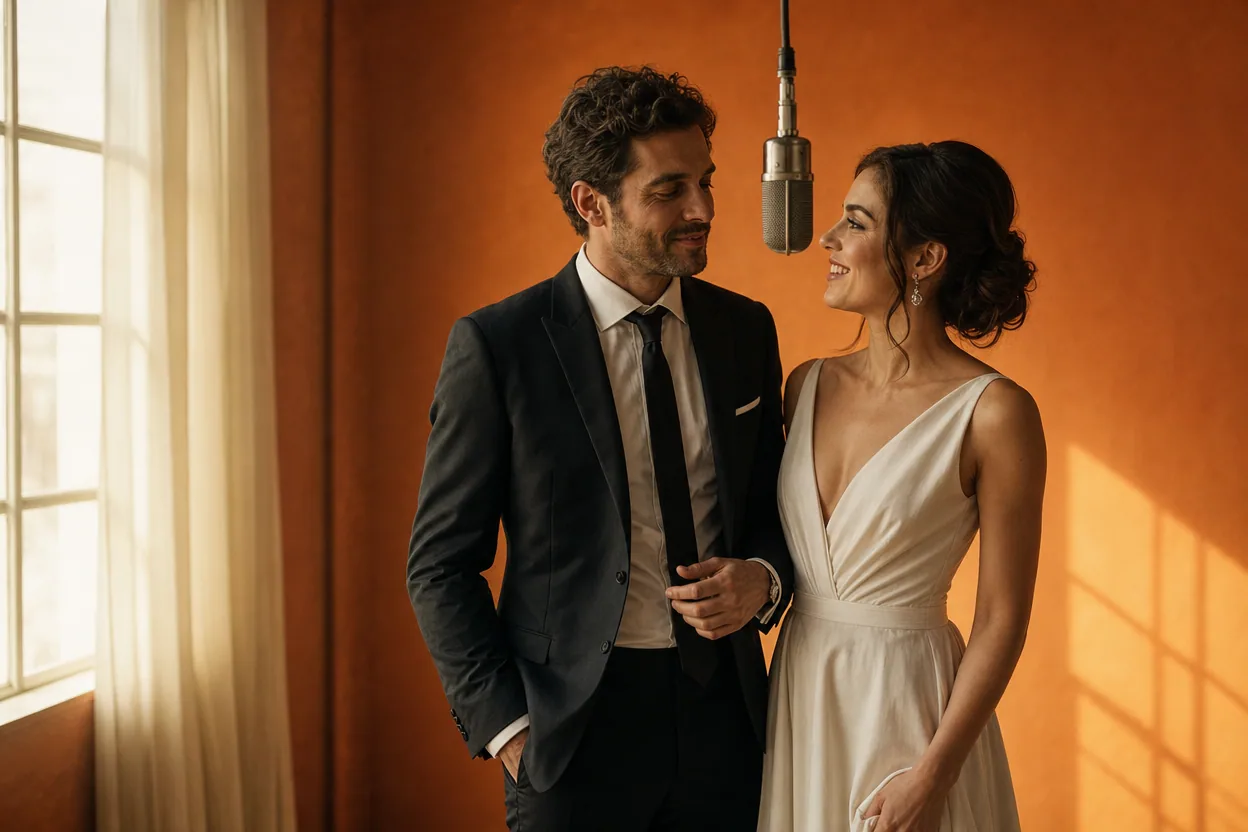
Wedding and couple keepsakes
Wedding Photo to Video
A wedding photo to video gives two formal portraits a shared moment of movement. You upload one photo of each person, choose a cinematic template, and the two faces are placed into the same short performance.
Open this use case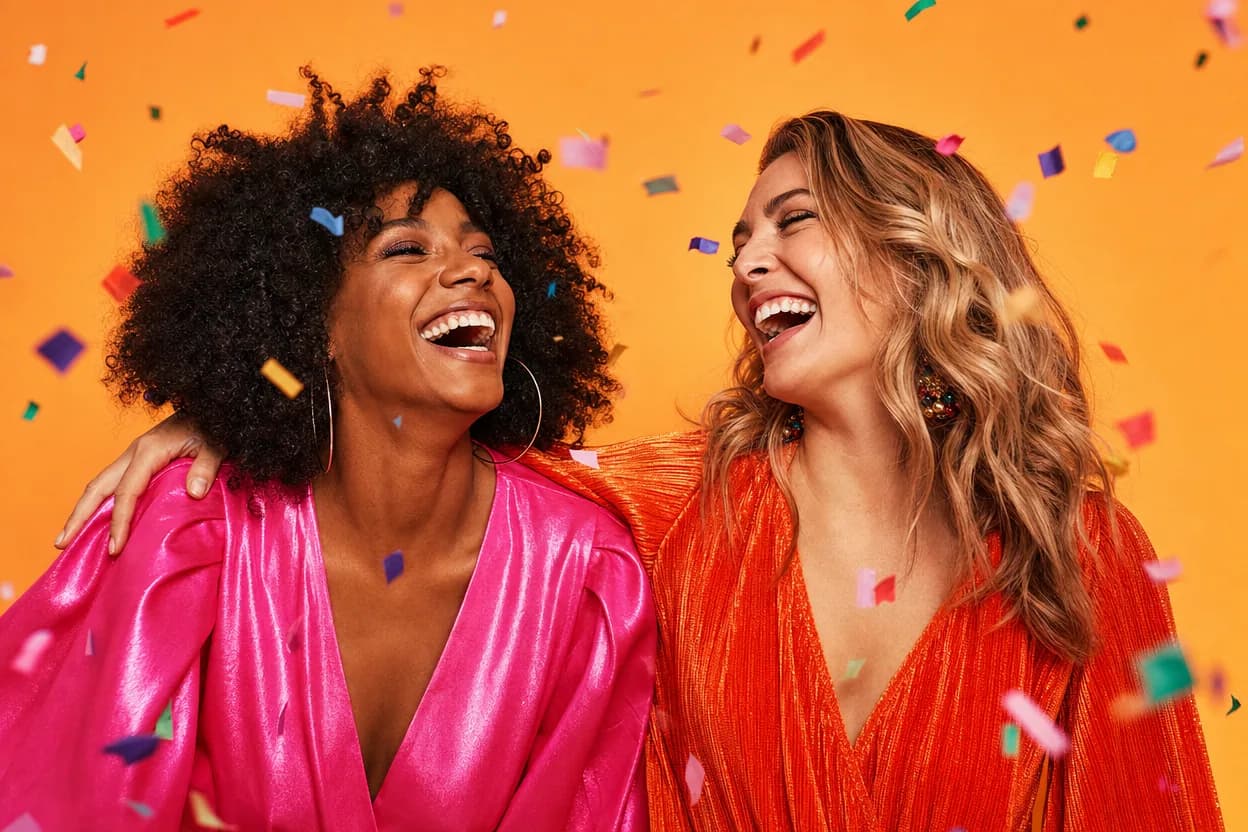
Birthday greetings
Birthday Photo to Video
A birthday photo to video lets two people share one short, upbeat clip without filming together. It works for a joint greeting, a long-distance message, or a playful post for someone who is hard to gather in one room.
Open this use case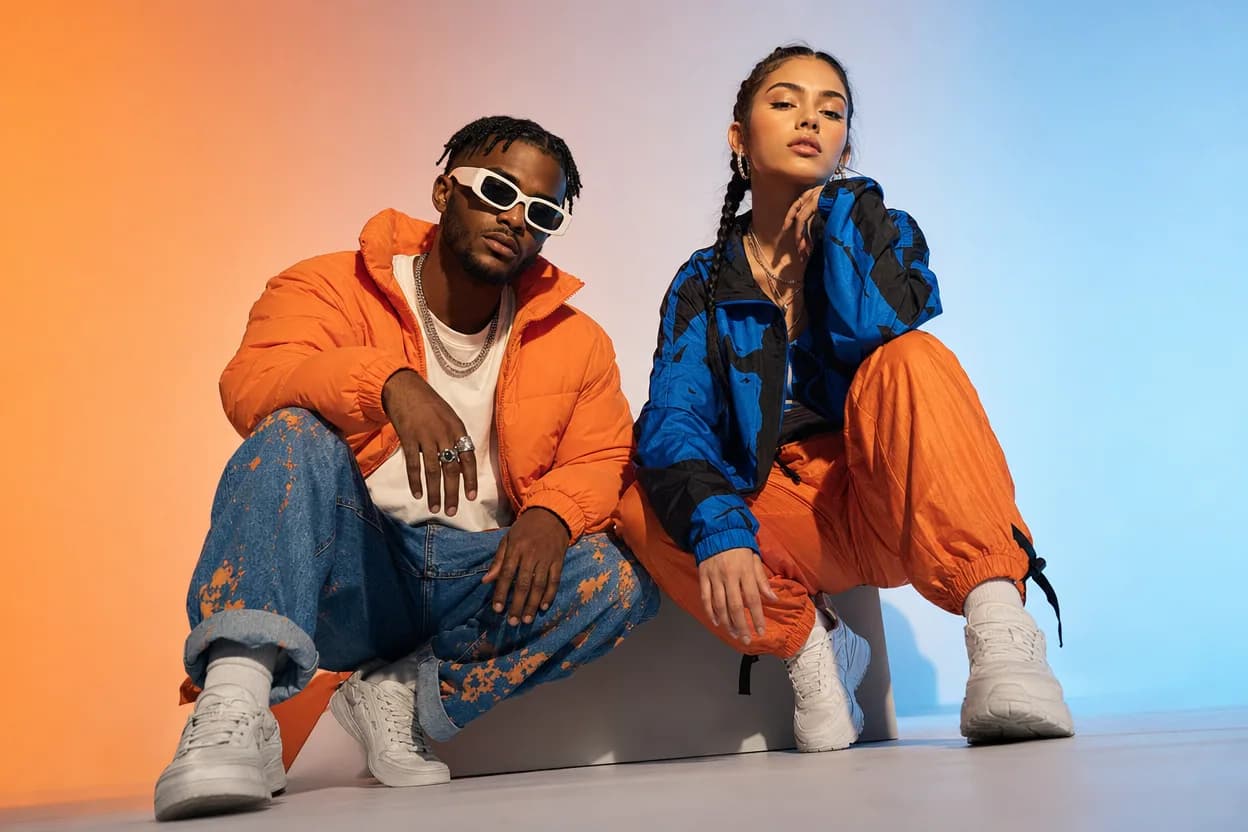
Social clips
Social Media Duo Video
A social media duo video is a short, shareable clip built from two portraits. It gives a post a moving visual without a shoot, a script, or a shared filming session.
Open this use caseRelated reading
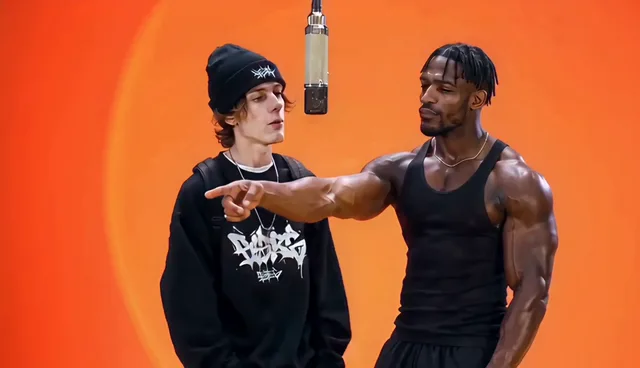 ai video from two photos
AI Video From Two Photos: How to Bring a Pair To Life
Two photos are all you need to produce a moving duo clip. Here is how motion transfer works, what to upload, and how to pick a template that fits your pair.
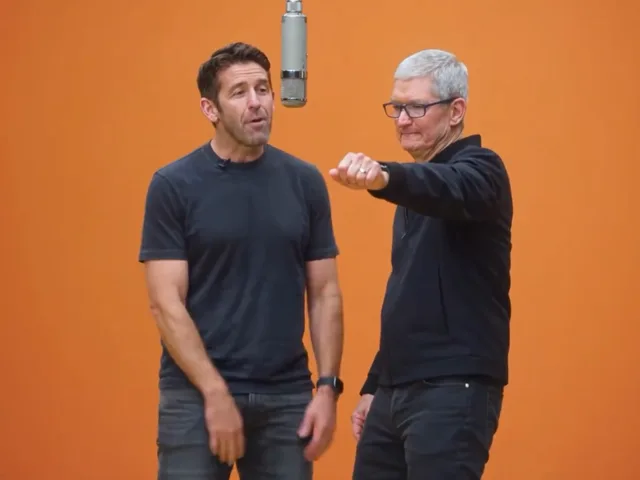 hotel lobby video template
Hotel Lobby Video Template: Picking the Right Preset Scene
Templates do the creative work in photo-to-video generation. Here is what each of the eight Hotel Lobby AI Video templates is built for.
 how to make an ai video from photos
How to Make an AI Video From Photos: A Complete Walkthrough
A complete walkthrough of turning photos into a generated video, from choosing the images to downloading the finished MP4.