put two photos side by side
How to Put Two Photos Side by Side (Free, No App)
Two photos, one clean frame, no app install.
Reviewed against the live product on 2026-10-20. The generator offers 480p or 720p, one photo per performer, and a template-set length.
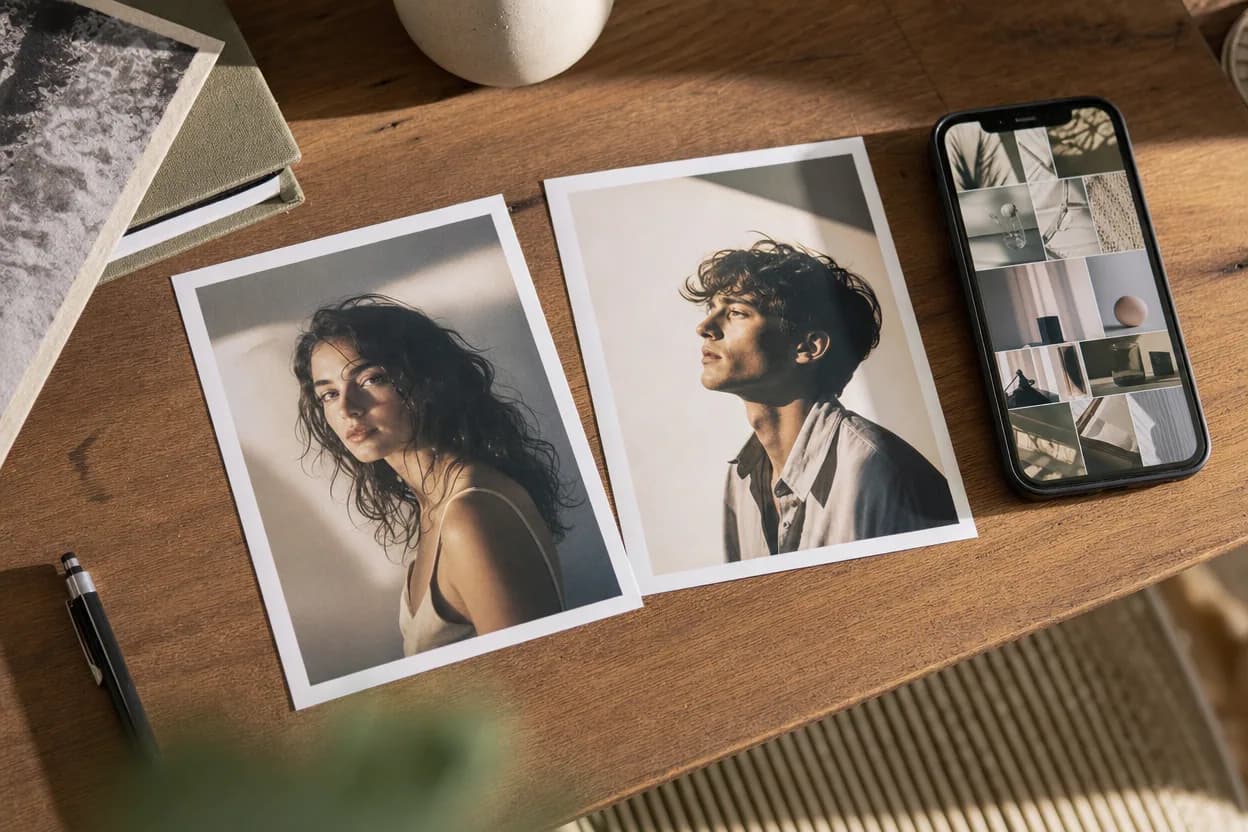
Putting two photos side by side sounds like a small task until you try to do it on a phone. The Photos app crops one image, a social app adds a border, and the result looks like a screenshot of a screenshot. A browser tool is usually faster: add two files, choose a layout, and export one image at a known size.
This guide covers the practical version. You will see how to make a side-by-side image, when a stacked layout is better, what to check before exporting, and how the same pair can become a short two-person AI video. It also covers the limits you should know before you use a free online tool.
The tool linked in this guide runs in your browser. Your photos are not uploaded just to preview or download the collage. That matters when the images include family, friends, or anyone who has not agreed to a public post.
Make your video here
Choose one photo per performer, preview them and swap positions. Generation requires sign-in and uses your account credits. Use photos you have permission to upload.
Choose your performers
Clear front-facing photos work best — one person per image, no covered faces.
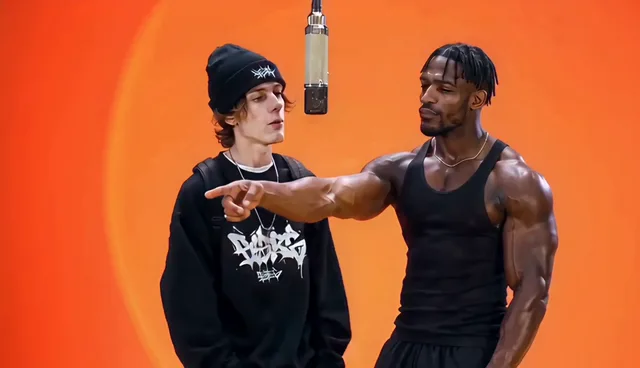
Two people performing a short studio duet, recast with your two photos.
Each generation uses credits from your balance.
Sign in to generate videos.
Signing in keeps selected photos in this browser for your return. The draft expires after 20 minutes and is removed on return or the next visit after expiry.
Template preview — your two photos replace these performers.
Preview and change the motion template
Classic Duo
Two people performing a short studio duet, recast with your two photos.
High Energy Duo
A faster, more upbeat two-person studio performance.
Soft Groove Duo
A slower, relaxed two-person studio groove.
Still to Motion
A still portrait brought into gentle motion.
Minimal Motion
Subtle movement with a minimal set and camera.
Kangaroo Boxer
A single boxing-kangaroo motion source from your provided material.
Duo Conversation
Two performers facing each other in a dialogue scene.
Cinematic Duo
A wider, more cinematic two-person framing.
Tools used in this guide
The fastest way to put two photos side by side
Open the free two-photo collage tool, add one photo to each slot, and keep the Side by side layout. The preview updates immediately. Use the gap slider to control the space between the images, then download the PNG. The export is 2000 by 1400 pixels, which is large enough for a post, a message, or a simple print.
If you want a vertical result, choose Stacked. That layout exports 1600 by 2000 pixels and places one photo above the other. The polaroid layout uses a square canvas with a wider border, which is useful when you want the pair to feel like a small print rather than a web banner.
The important part is the order. Photo A stays on the left in the side-by-side layout and on top in the stacked layout. Photo B takes the other slot. If you need to change the order, swap the files before you export rather than fixing it after.
- Side by side: best for two portraits or a before-and-after pair.
- Stacked: best for phone screens and vertical posts.
- Polaroid: best for a square keepsake with a visible border.
- Keep the largest source files you have; the browser will scale them down.
What makes a side-by-side photo look clean
The two photos do not need to come from the same camera, but they should agree on a few things. Similar lighting helps. Similar crop helps more. If one face fills the frame and the other is a tiny figure in a wide shot, the pair will look unbalanced even if the layout is technically correct.
A simple fix is to crop both images to the same subject scale before combining them. The photo prep studio can do that: crop each portrait into a square, center the face, and lift a dark image. Then return to the collage tool and export the pair. This two-step workflow is usually faster than trying to fix the combined image later.
Avoid placing a face directly against the center gap. Leave a little breathing room around the head and shoulders. If the background is busy, a plain background token behind the pair will make the result easier to read.
Phone vs desktop: what changes
On a desktop browser, you can drag a file from a folder or choose it with the file picker. On a phone, the file picker opens your photo library. The browser still draws the collage locally. The main difference is screen space: use the preview to check the crop before you download, because a small phone screen can hide a cut-off chin or a face near the edge.
Some phone photo apps export a compressed copy when you share an image. If you want the cleanest result, choose the original file in the browser picker instead of a resized copy from a messaging app. A screenshot of a photo is almost always worse than the original, especially for faces.
If the browser is slow with two large photos, reduce them to a reasonable size first. The collage tool only needs enough resolution for the export, and a 12-megapixel original is more than enough for a 2000-pixel canvas.
Common mistakes when combining two photos
The most common mistake is using a group photo for one slot and expecting the tool to isolate a person. It will not. A group photo becomes a group photo inside the collage, which is usually not what the user wanted. Crop to one person first.
The second mistake is mixing a very warm indoor photo with a cool outdoor photo and expecting the pair to look like one scene. You can still combine them, but the result will read as two separate images. That may be fine for a collage; it is less fine if you plan to use the pair as inputs for a video.
The third mistake is exporting before checking the edges. A face can be complete in the preview but cut off in the final crop if the layout changes. Change the layout first, then check the faces, then download.
- One person per photo for a portrait collage.
- Match brightness before matching background.
- Check the center gap and the outer edges.
- Export after the layout is final, not before.
Turn the pair into a two-person video
A collage is a still image. If you want movement, the same two photos can be used as inputs for the video generator. The collage tool has a button that prepares both images and carries them to the generator in the same browser. The generator then asks you to choose a template and a resolution.
The video is not made from the collage itself. It uses the two individual photos, one per performer, so the model can place each face into its own slot. That is why the original pair matters more than the combined image. Keep both files clean and separate.
A useful workflow is: crop each portrait in the photo prep studio, make a side-by-side collage if you want a still keepsake, then open the generator and use the two prepared portraits for the video. You get a shareable image and a short clip from the same source material.
When not to use a side-by-side layout
Side by side is not always the right composition. Two tall portraits in a wide frame can leave a lot of empty space. A stacked layout often works better on a phone, and a single portrait with a caption may be clearer than a pair if the message is about one person.
If the two photos have very different aspect ratios, a side-by-side frame will crop both of them. Check the faces after the layout is applied. If one person is cut off, switch to stacked or prepare each photo as a square first.
Finally, do not use a collage to imply that two people were together when they were not. A collage is a designed image. If the context could mislead, label it clearly or choose a format that does not look like a single photograph.
Frequently asked questions
How do I put two photos side by side for free?
Open the free collage tool, add one photo to each slot, keep the Side by side layout, and download the PNG. No account is required for the collage.
Can I do this on my phone?
Yes. The tool works in a mobile browser. Choose the original photos from your library and check the preview before downloading.
What size is the exported image?
Side by side exports at 2000 by 1400 pixels. Stacked exports at 1600 by 2000, and polaroid exports at 1800 by 1800.
Are my photos uploaded?
The collage is drawn in your browser. A photo is only passed to the video generator if you choose the button that continues to generation.
Can I add text or a border?
This tool focuses on the image layout and background. Add text in a separate editor if you need a caption or a title.
Can I use the collage as a video input?
The video generator needs two separate photos, one per person. Use the handoff button to prepare both photos, or upload the two originals directly.
Pick the moment
Each use case opens the same real generator with a template chosen for that occasion.
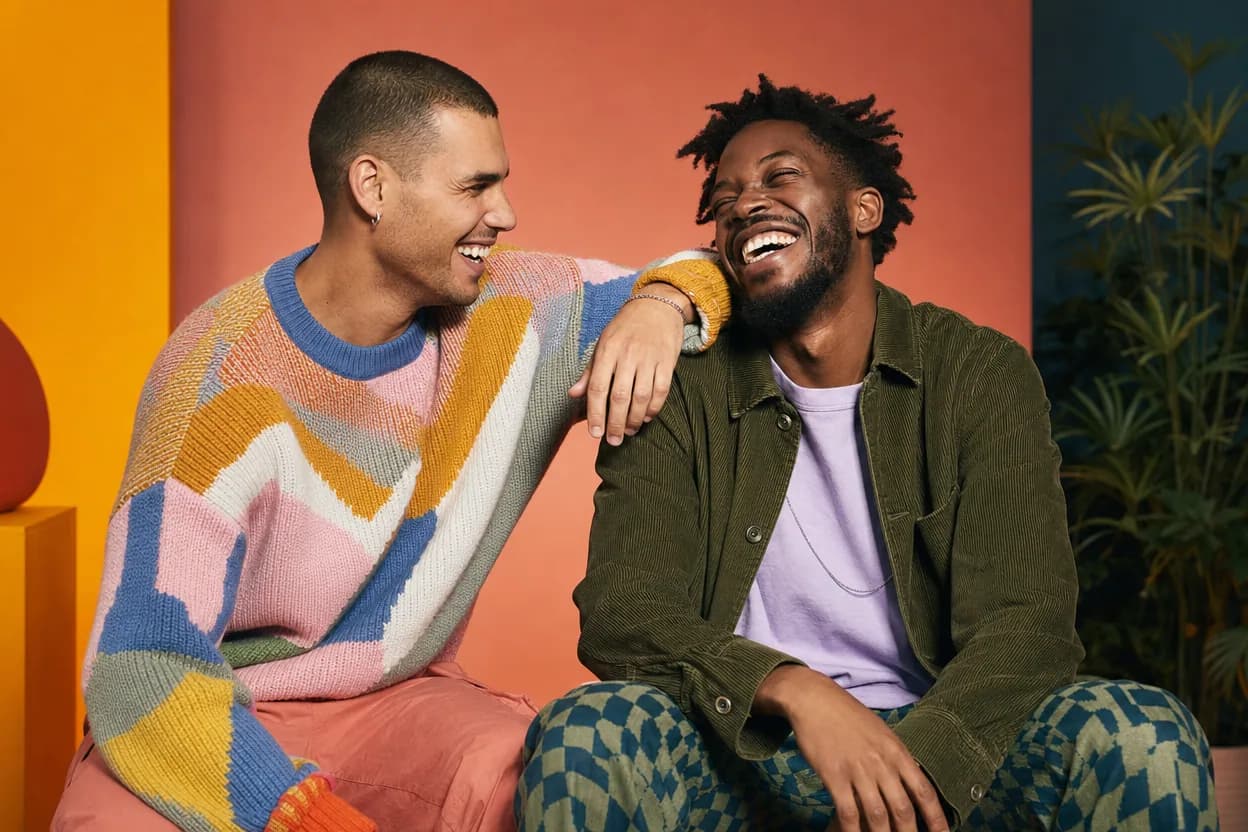
Friendship
Best Friends Duo Video
A best friends duo video puts two friends into the same short performance without needing a shared shoot. It is a playful format for a birthday, a moving-away message, a reunion, or a social post.
Open this use case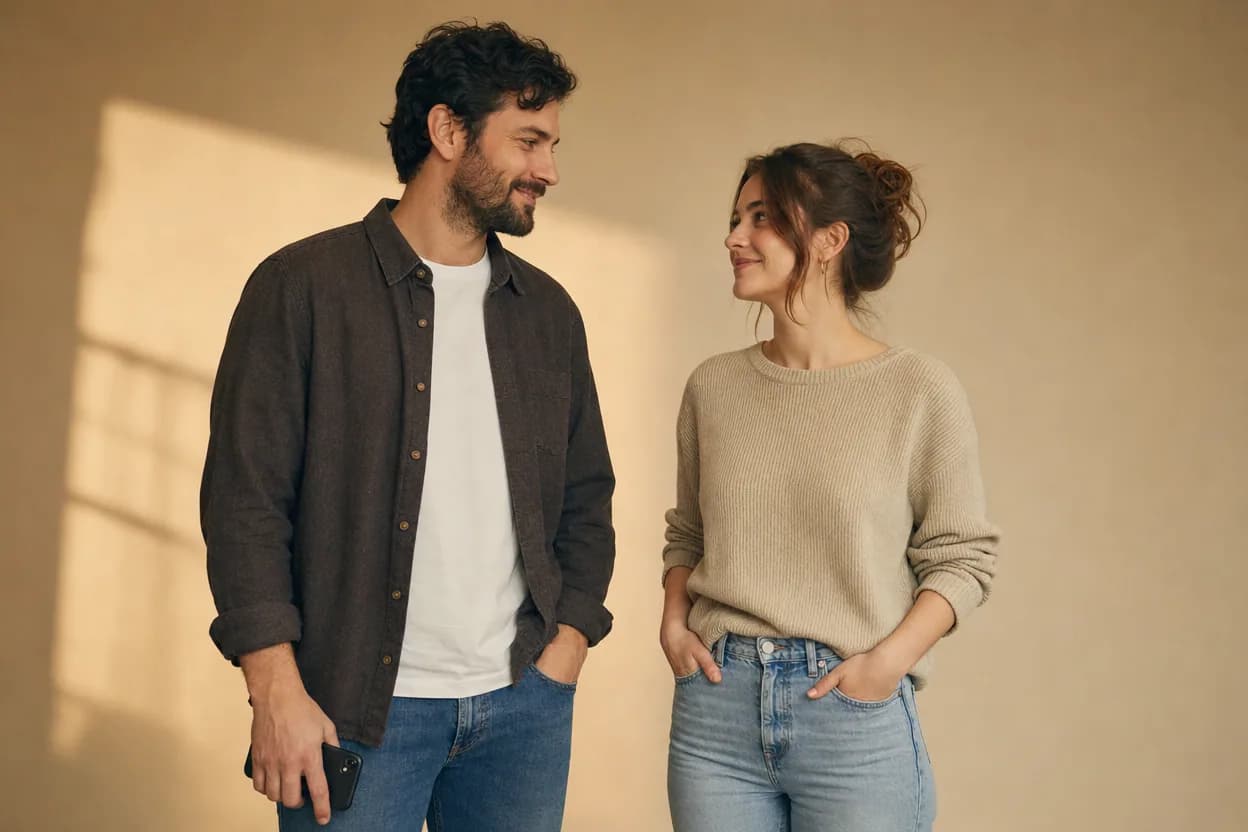
Long-distance relationships
Long Distance Couple Video
A long distance couple video gives two people in different places a shared visual moment. Each person supplies a photo, and the template places both of them inside one short scene.
Open this use case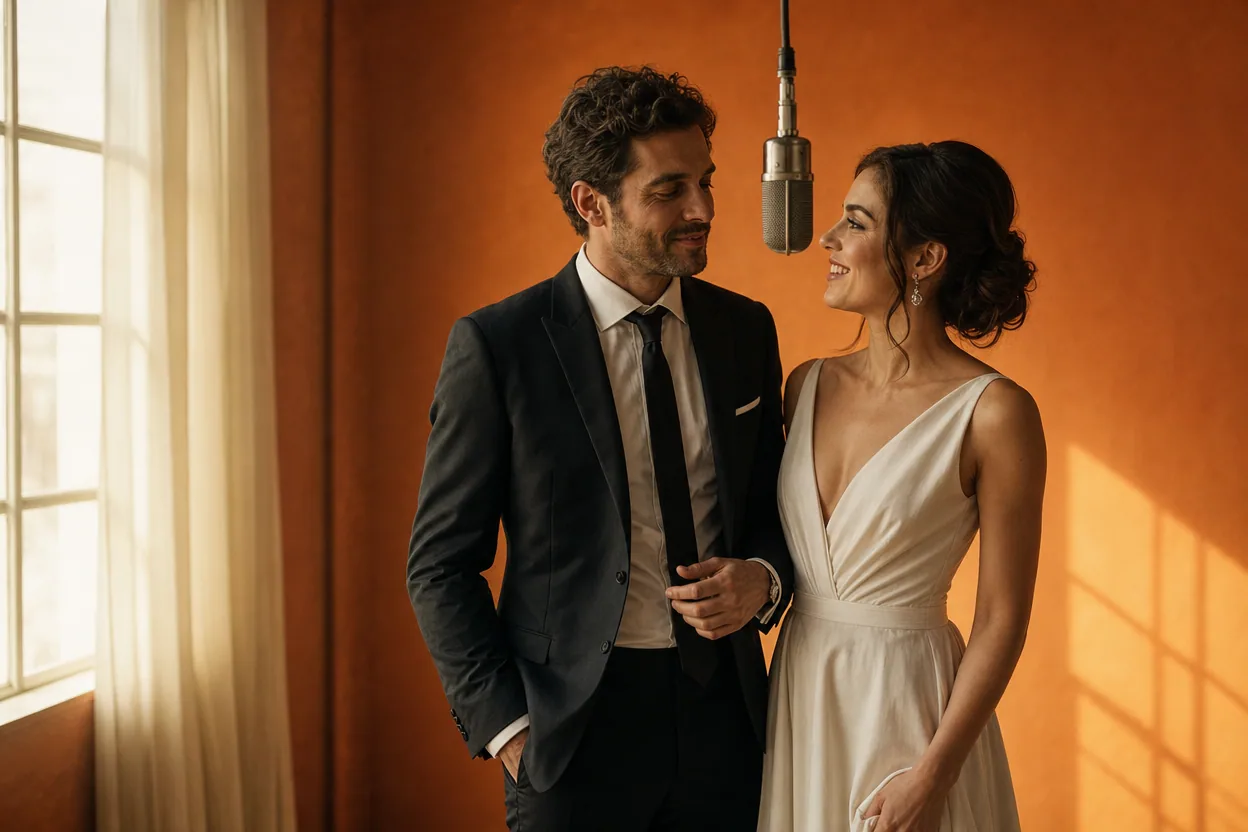
Wedding and couple keepsakes
Wedding Photo to Video
A wedding photo to video gives two formal portraits a shared moment of movement. You upload one photo of each person, choose a cinematic template, and the two faces are placed into the same short performance.
Open this use caseRelated reading
 ai video from two photos
AI Video From Two Photos: How to Bring a Pair To Life
Two photos are all you need to produce a moving duo clip. Here is how motion transfer works, what to upload, and how to pick a template that fits your pair.
 how to make an ai video from photos
How to Make an AI Video From Photos: A Complete Walkthrough
A complete walkthrough of turning photos into a generated video, from choosing the images to downloading the finished MP4.
 ai duo video photo checklist
Fix an AI Duo Video: A Practical Photo and Result Checklist
A repeatable way to prepare portraits and diagnose a weak result without blindly regenerating the same clip.